 by
by You can edit the design of your study:
- During study creation (read more about how to start a study here);
- After the study has been created.
Attention: Please note that you can only edit a study before it begins. Once started, you can’t change the study design, but you can change the rest of the information (URL, details of the registration page, intake questionnaire, etc.).
Let’s take a closer look.
1. Editing the design of the study during its creation
In the process of creating your study, you will need to select the activities that participants in your study will be asked to do (see sections 2 and 3 of this article).
At each of these steps (when selecting an assessment battery, assessment task, training, delay, or custom activity), you can add, edit or remove selected activities.
Note: When editing a study in progress, click the Save button on the right side of the screen only after you have completed changes to all task types.
For example, let’s add assessment batteries to our study.
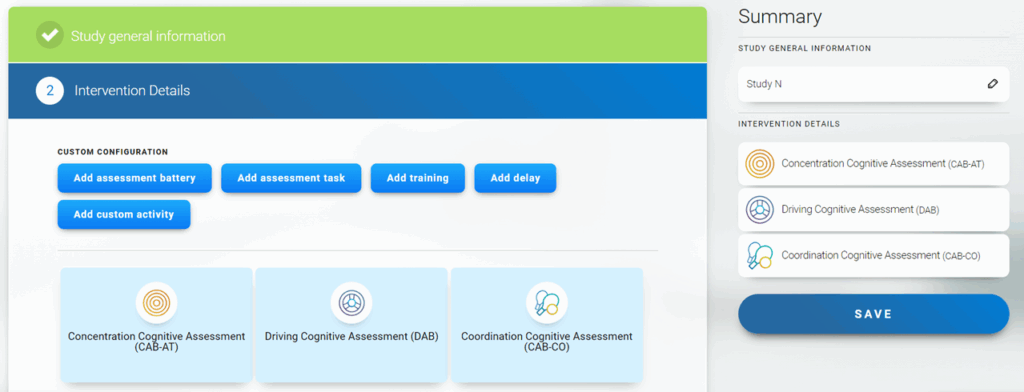
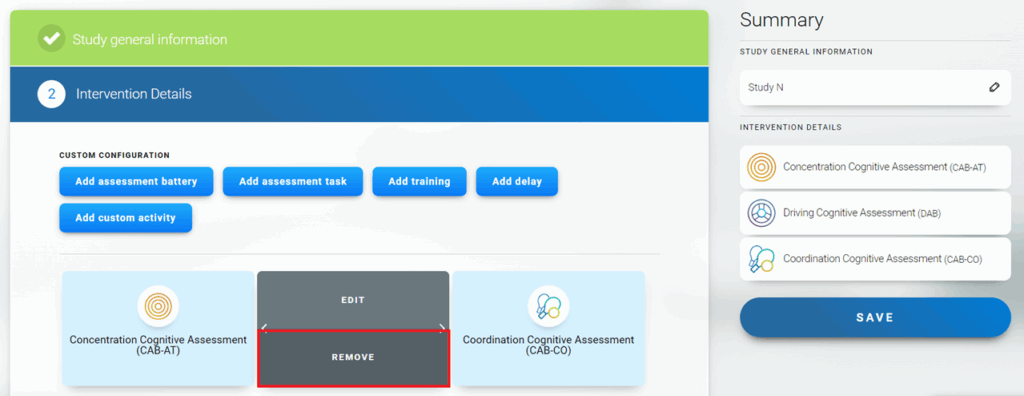
Next, hover your mouse arrow over the task you want to edit. You will have 3 options available to you:
- Click on Edit to change this assessment battery to a different battery.
- Click on Remove to completely delete this task.
- Click on the arrow to move the task to the left or right. This will change the order in which the task is performed.
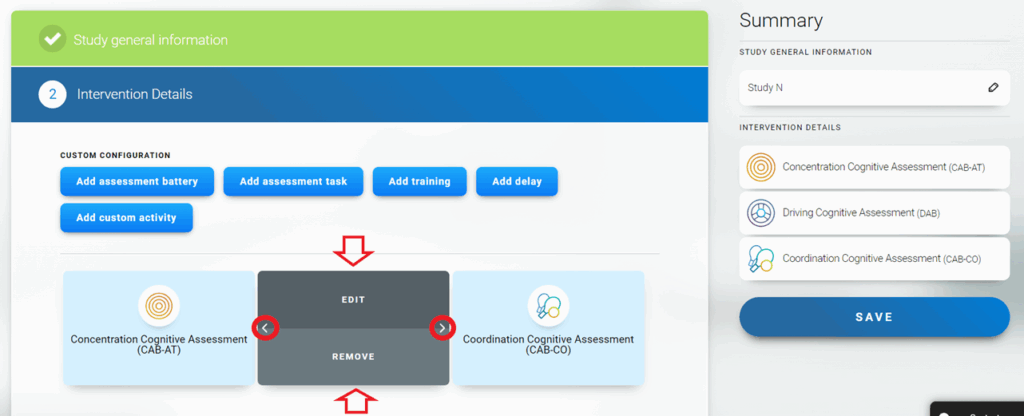
Let’s take a closer look.
1.1 Once you click on Edit, simply select another assessment battery from the list below and click on it.
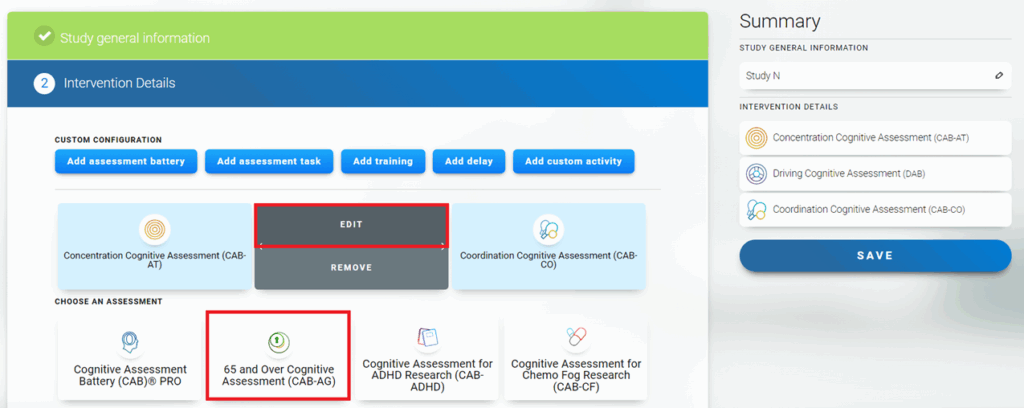
This will automatically replace the assessment battery with the new one.
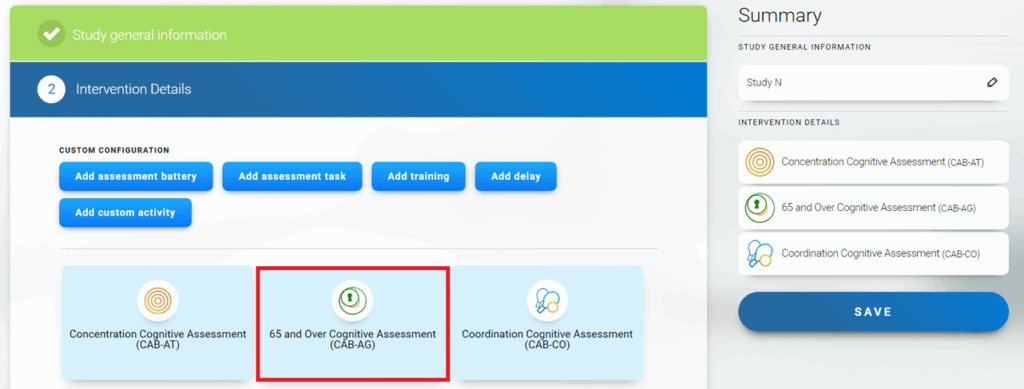
1.2 Clicking the Remove button will completely remove this task from the study.
1.3 Clicking on the arrow will move this assessment battery one position to the left or right, which will change the order in which participants perform the tasks.
To do this, hover the mouse arrow over the selected task to see the available actions and click on the left or right arrow.
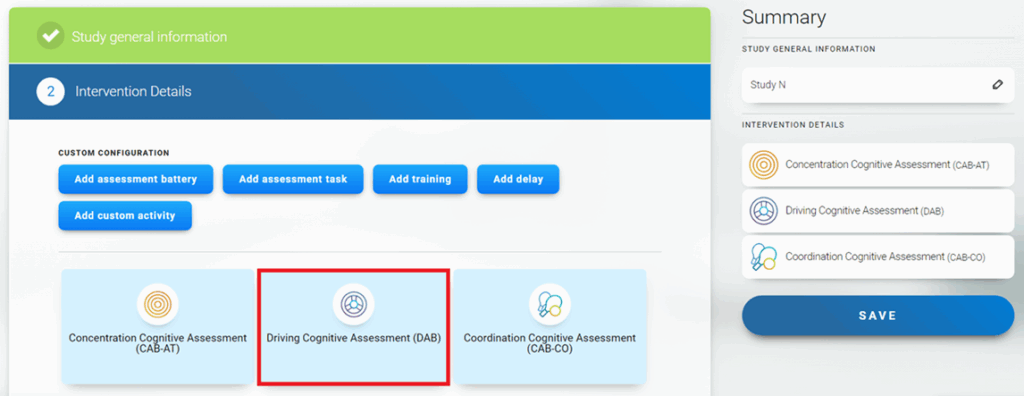
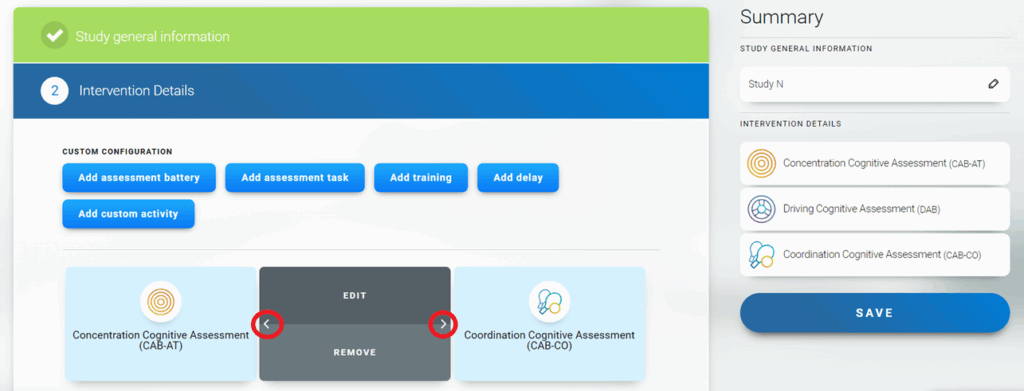
In our example, let’s move the assessment battery for drivers to the left so that study participants complete this task first.
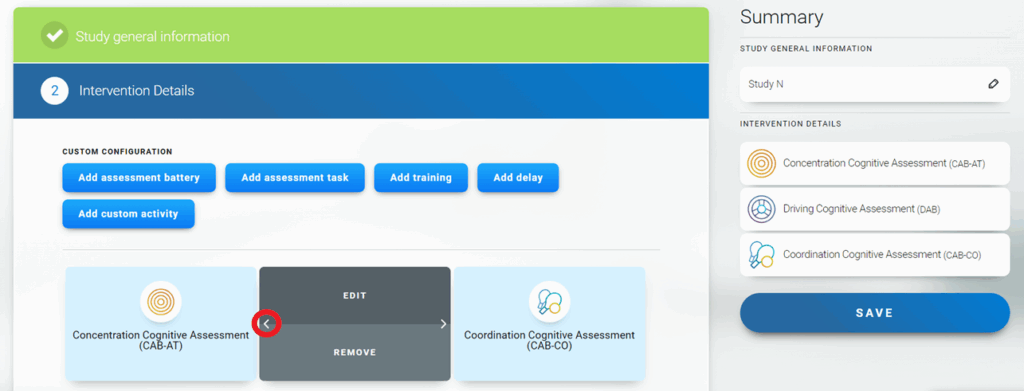
After that the task will move one position to the left, i.e. in this case this task will be performed by the participants first.
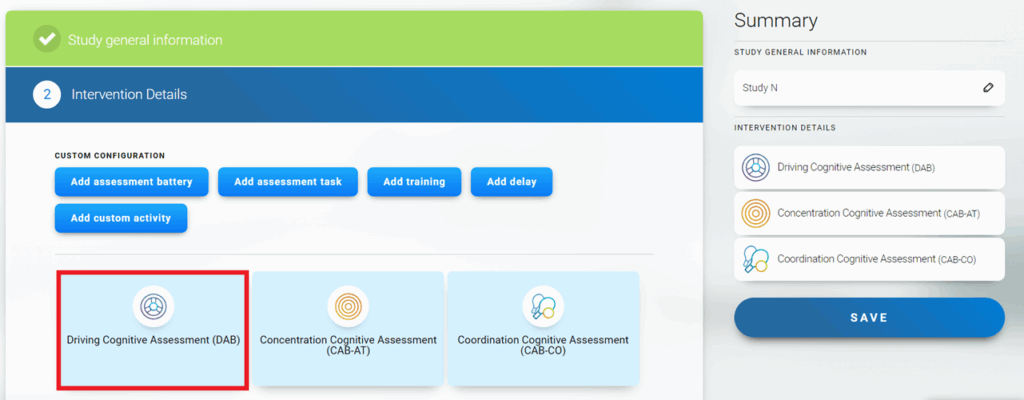
Note: Your study participants will see the activities in the order in which you add the activities and in which you see them in your research account: top to bottom and left to right.
According to the above example, make the necessary edits to all job types.
Attention: The intervention can not end with a Delay period. Click the Save button on the right side of the screen only after you have completed changes to all task types.
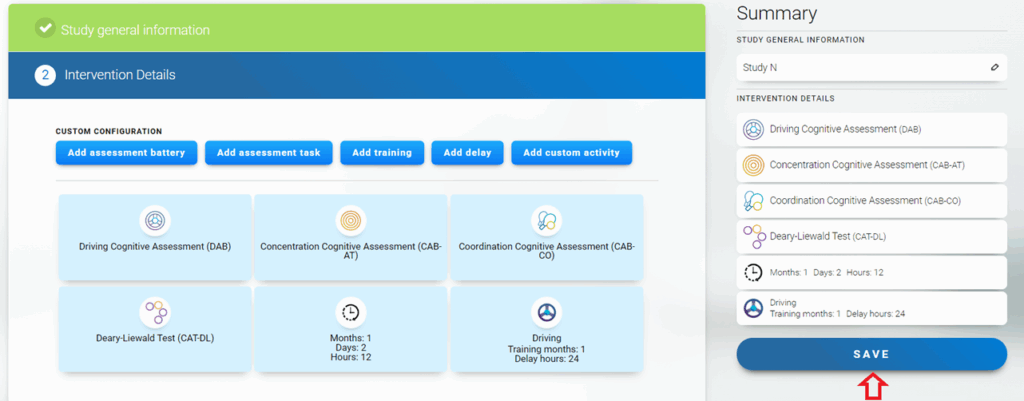
2. Changing the design of a study after it has been created
Attention: Once you create a study, you can only change its design before you start that study.
To edit your study, follow the steps below.
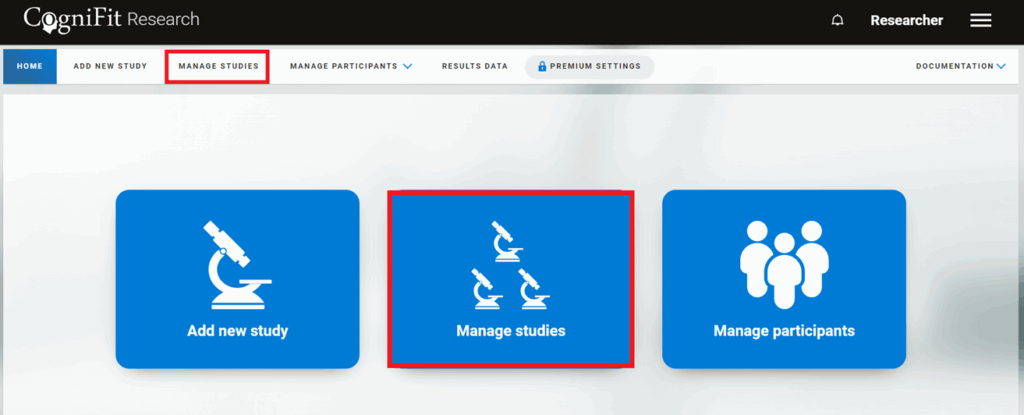
2.1 On your account home page, click on “Manage Studies” in the center of the screen or at the top of the page.
2.2 On the page that opens, find the desired study in the list on the left or by typing its name in the search bar. To edit a study, click on its settings.
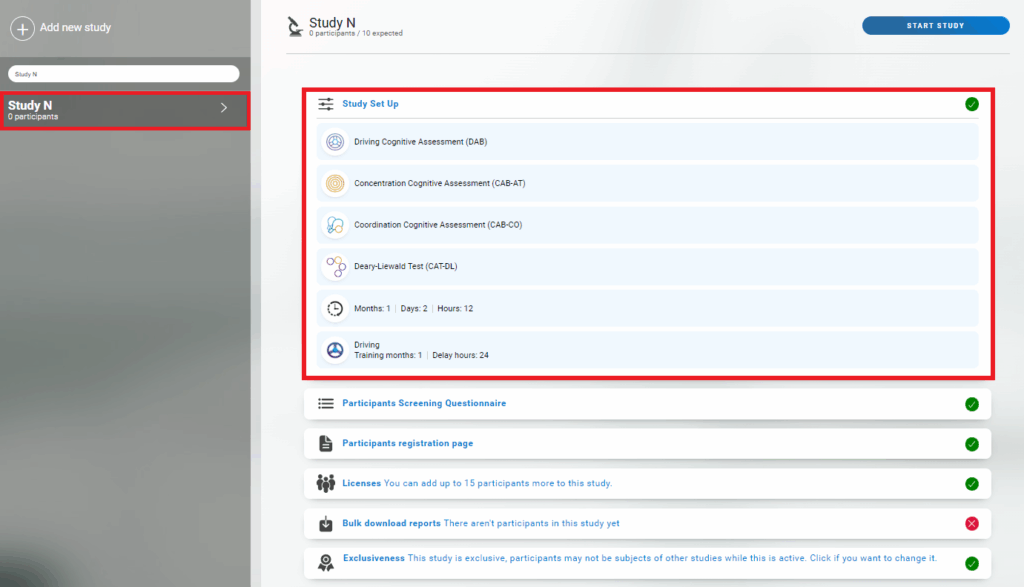
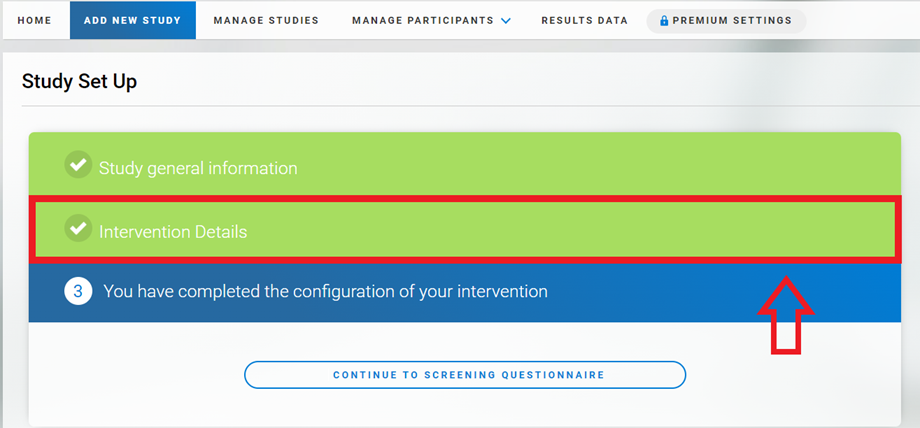
2.3 On the page that opens, click on “Intervention Details” and then follow the steps outlined in Section 1 of this article.
Attention: Once you start the study, you will not be able to change the assigned interventions, but you will be able to change some data: add participants, change the study URL or the screening questionnaire. To change these data, follow the instructions in this article.
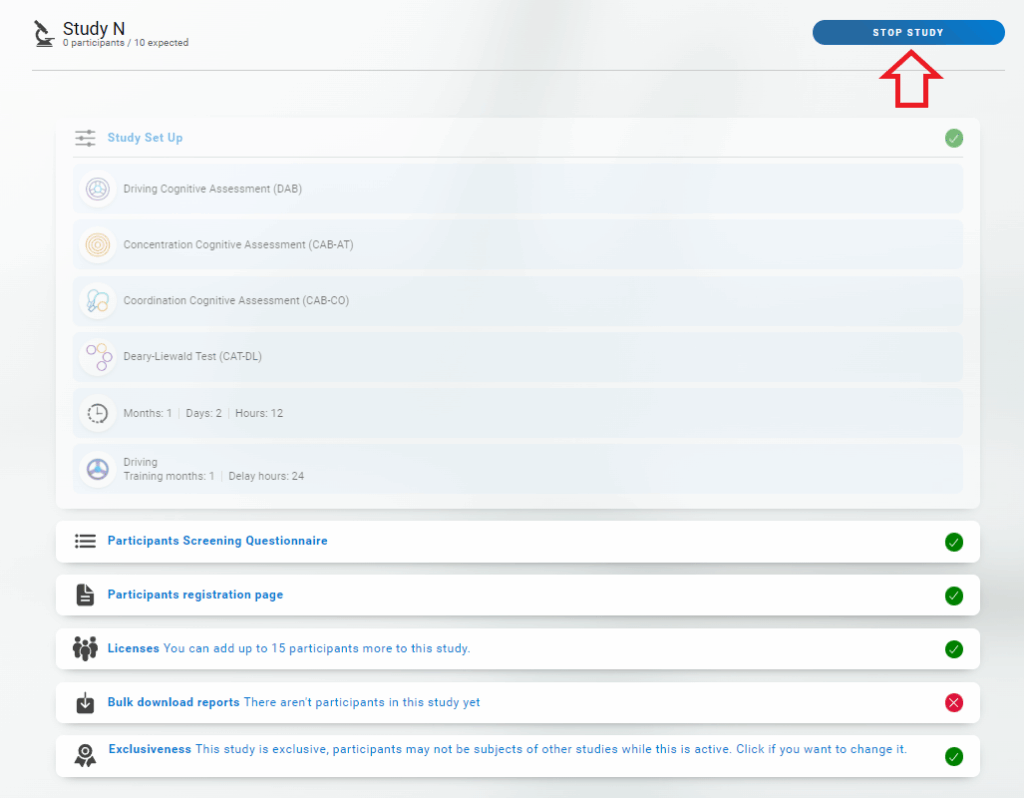
Note: However, if the current activities are no longer relevant and you want to, for example, send a POST-assessment to a participants, you can simply create another study with this assessment and invite your participants. This way, the participant will see both the original study and the new study. Important: Both studies have to be NOT exclusive.
Questions? Contact our customer service team by sending an email to support@cognifit.com