 by
by By inviting study participants to CogniFit, you can add them to groups. To add a participant to a group, follow these steps:
1. Go to the home page of your account and click Manage Participants in the center right or in the menu at the top of the screen.
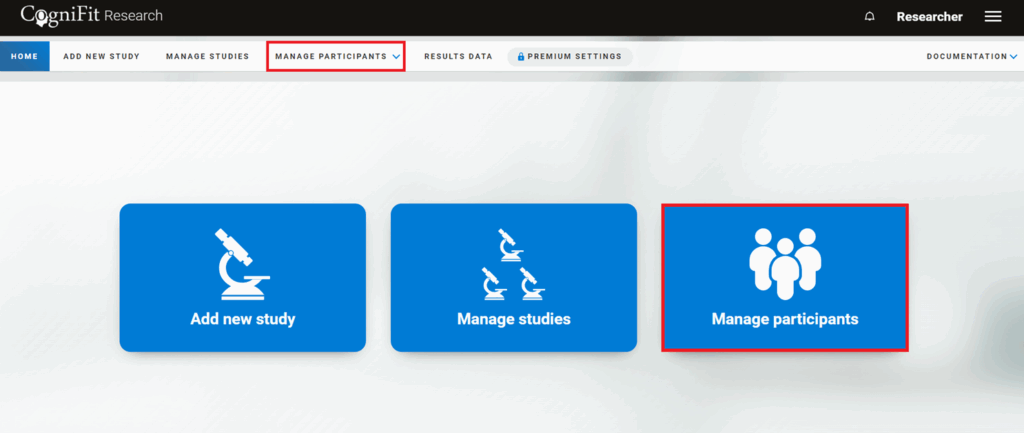
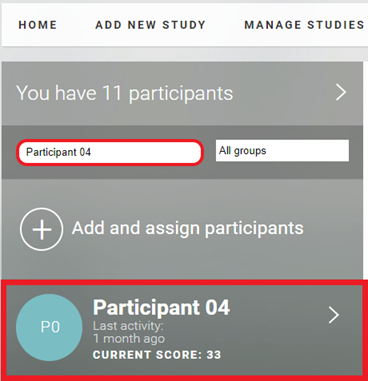
2. You’ll be taken to the participants’ page. Select a user from the list on the left or find the name of the participant you want to add to the group in the search bar.
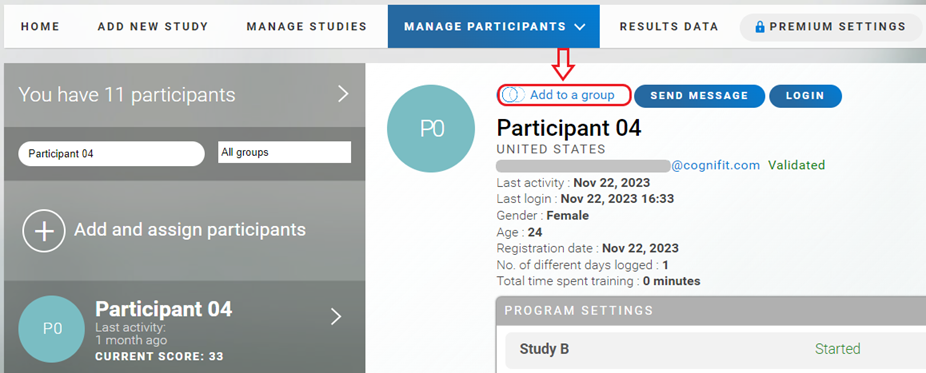
3. Go to the selected participant’s profile and click Add to a group.
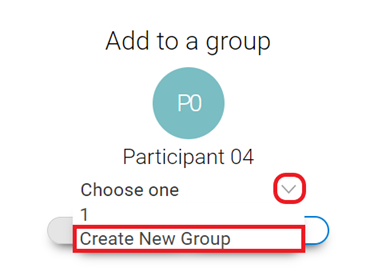
4. Choose the group you want to add the participant to and click Save.
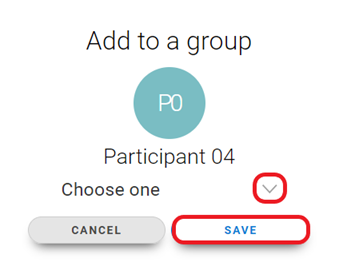
Note: You can also create a new group to add a user to it.
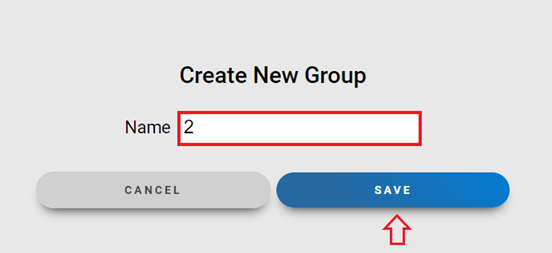
Enter a title and click Save.
5. The name of the group to which the participant is included can be seen in their profile.
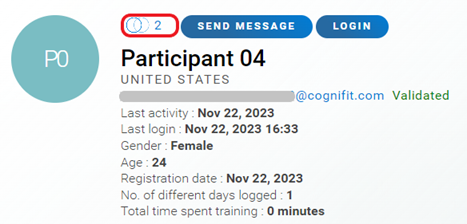
Note: You can only add the same user to one group, but you can change the participant’s group at any time. To do this, click on the group name in the participant’s profile and follow the steps in step 4 of this article.
If you have any questions you can contact our support team by sending an email to support@cognifit.com