 by
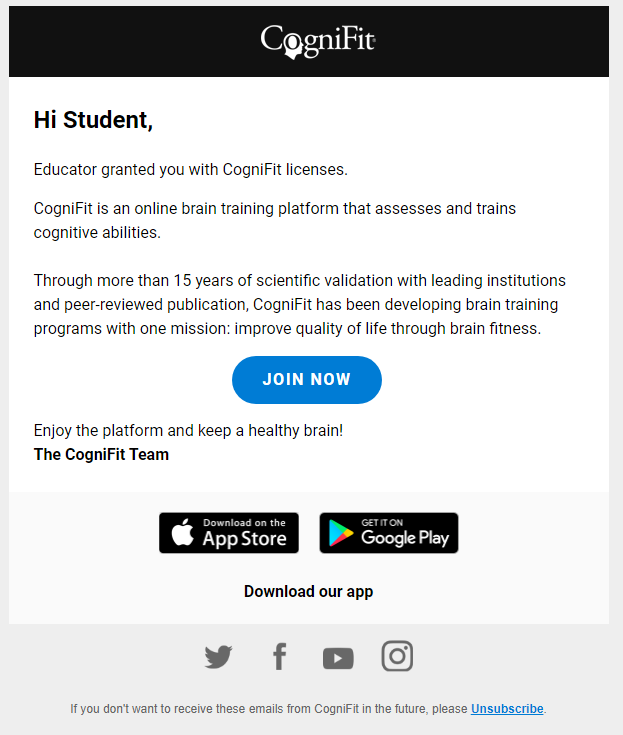
by Once the educator has added students to their account, the students receive an email invitation to register for CogniFit. Note that the educator can also activate the student account in the student’s name.
In this video you will learn all about student registration.
Attention: you can activate your student account regardless of whether or not you received the invitation email. The activation email may be in your spam or junk folder.
Students can enroll through the CogniFit website using a computer or using a mobile app. If you use the mobile application, go to section 2 of this article.
1. If the student is using the computer
1.1. Register through an invitation from your educator
1.1.1 Open the email with the invitation and click the Join Now button.
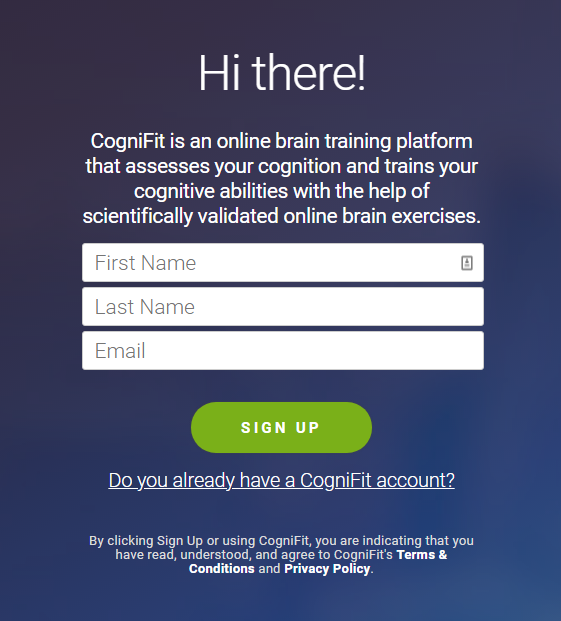
1.1.2 On the page that opens, review your data and click the Sign Up button
To continue to the next step, skip to section 1.3 of this article.
1.2. Register from the CogniFit home page
1.2.1 To get started, go to the CogniFit home page. Indicate which country or region you are in. The browser will automatically detect your location. To confirm, click the “Continue” button in the blue bar at the top of the screen.

If you want to change country or region, click on the drop-down menu arrow and select the “Other country or region” option. Click the “Continue” button.

On the page that opens, choose a country or region from the list and click on the selected option to access the CogniFit page for your country or region.

Note: If you want to change the platform language, select the desired language from the drop-down menu in the upper right corner of the page or change the language after registration in your profile settings, following the instructions of this article.
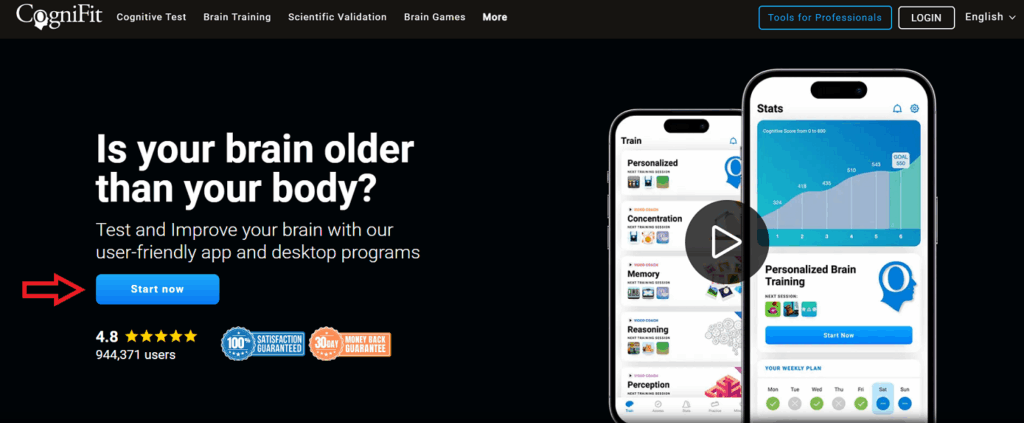
Click the Start Now button.
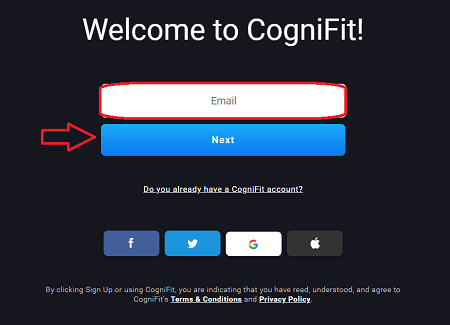
1.2.2 Add your email address and click the Next button.
The email address must be exactly the same as the educator added when adding you to their account. The email address is the only way to link your student account with your educator’s account.
1.3. Create a password
Please note that your password must be at least 6 characters long.
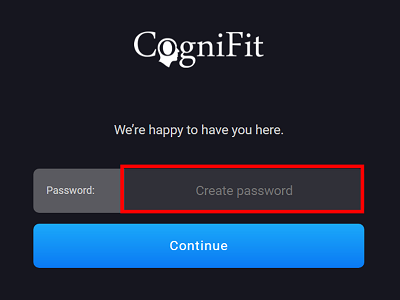
Click Continue.
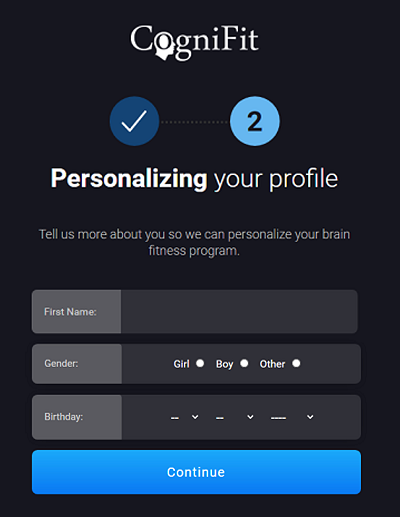
1.4. Enter your name, gender, date of birth and click the Continue button.
Attention: if you have registered through the invitation, the system will ask you to indicate only your gender and date of birth.
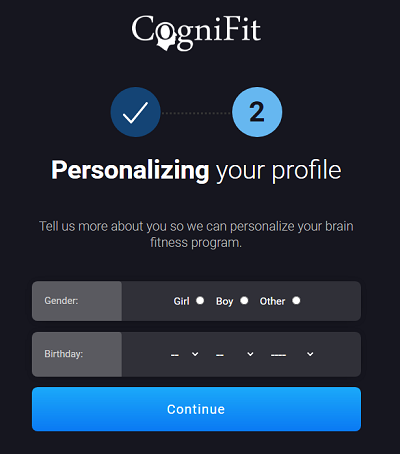
Why is CogniFit requesting this personal information?
CogniFit provides you with normalized results that automatically compare you to people of the same age range and gender on a scale of 0-800. 400 is the average score for your age group, and anything above 400 is considered above average. Read more about the CogniFit scoring system here.
1.5. Follow the instructions on the platform to validate your account. Click Continue.
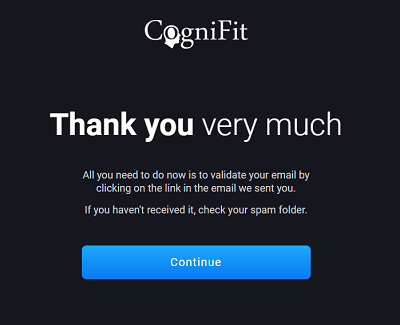
1.6. The platform will inform you that an evaluation or training has been recommended for you. Click Continue.
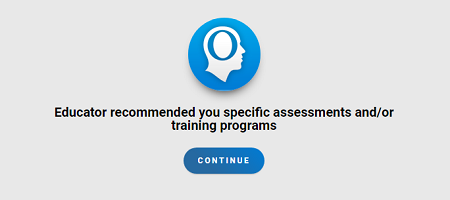
1.7 Congratulations, your student account is now set up!
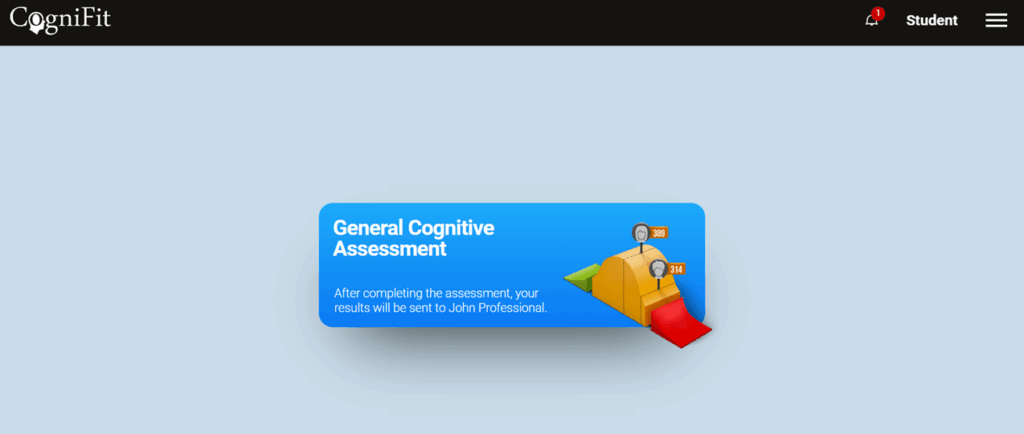
In your account, you will see the program assigned to you by the educator. Start your test or training session.
2. If the student is using a mobile device
2.1 Download or open the CogniFit app
Open the email with the invitation on your mobile device and download the application by clicking on the App Store or Google Play icon depending on the device you use:
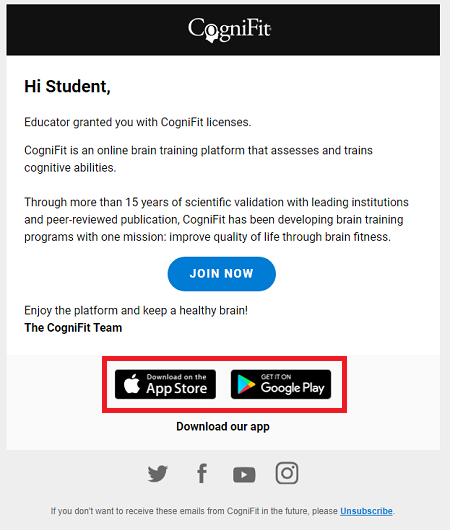
or download our app directly from the App Store or Google Play.
2.2 Sign up for the application
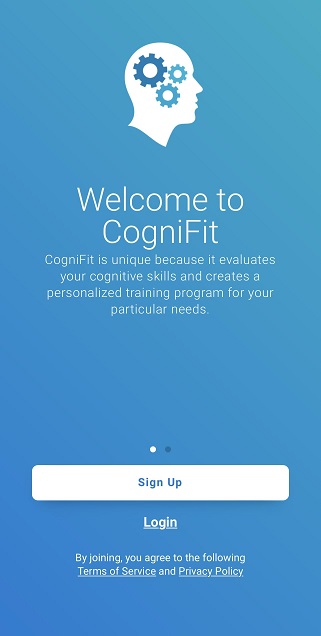
Once you have downloaded the CogniFit app from the app store and open the app, you will see a welcome screen. Click the “Sign up” button.
2.2.1 Enter the email address, create the password and click on Continue
Attention: The email address must be exactly the same as the email address the educator added when adding you to their account. The email address is the only way to link your student account to the educator’s account.
The password for the application must be between 8 and 40 characters in length and contain at least one numeric character. To register, the student may only use the e-mail address that the educator has suggested that they use or that they have provided themselves.
Fill in the data and click on the “Continue” button.
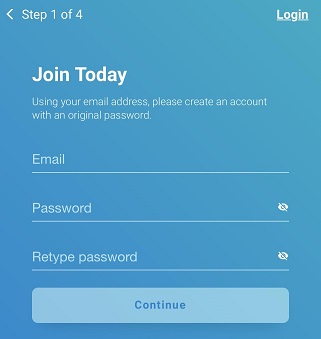
2.2.2 Enter your first and last name and click on the “Continue” button.
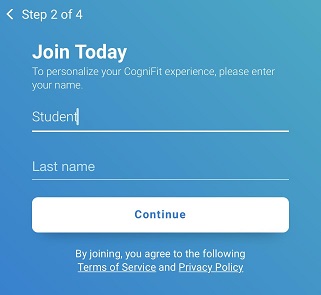
2.2.3 Enter your date of birth and click the “Continue” button.
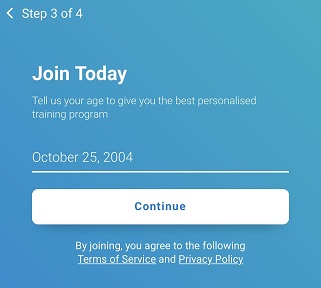
Note: Minors under the age of 16 can create an account with parental or guardian consent through the CogniFit website.
2.2.4 Indicate your gender
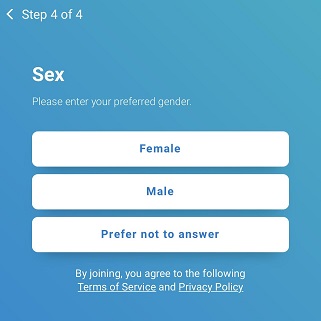
2.2.5 The application will inform you that an assessment or training has been recommended. Click on “OK”
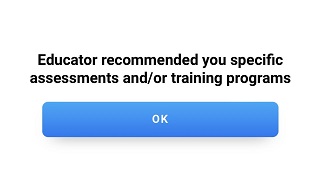
2.3 Congratulations, your student account is now set up!
In your account, you will see the program assigned to you by your educator.
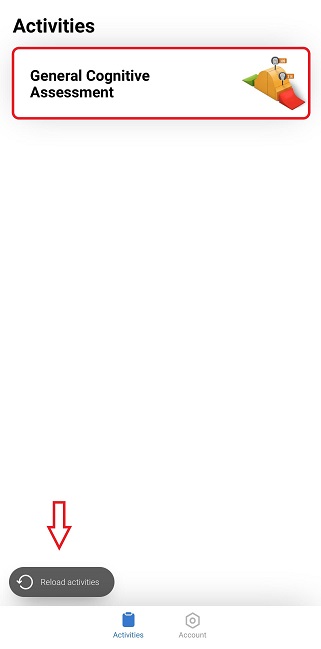
Note: To update the information on the page, click on the “Reload activities” button at the bottom of the screen.
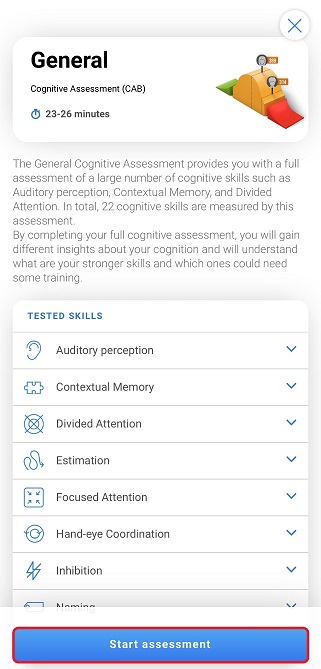
Start your assessment or training session.
If you have any questions, you can contact our support team by sending an email to support@cognifit.com