 by
by You can access the results of your study participants in the “Manage Participants” section of your research account.
Clicking on a participant’s name will take you to their profile page, where you can:
- See the activities completed by the participant;
- See what study(s) the user is participating in;
- Download reports on assessments and questionnaires;
- View the participant’s scores for each cognitive domain and ability;
- Track the participant’s cognitive evolution;
- Export the participant’s data in csv format.
Note: If you are interested in downloading your research data (the Raw Data of the participants: Assessment Variable Values and Questionnaire results, Skill Results, Adherence report), please see the article “How can I download the study data?“.
Let’s take a closer look at what information you can find on a study participant’s profile page.
1. Go to the “Manage Participants” page
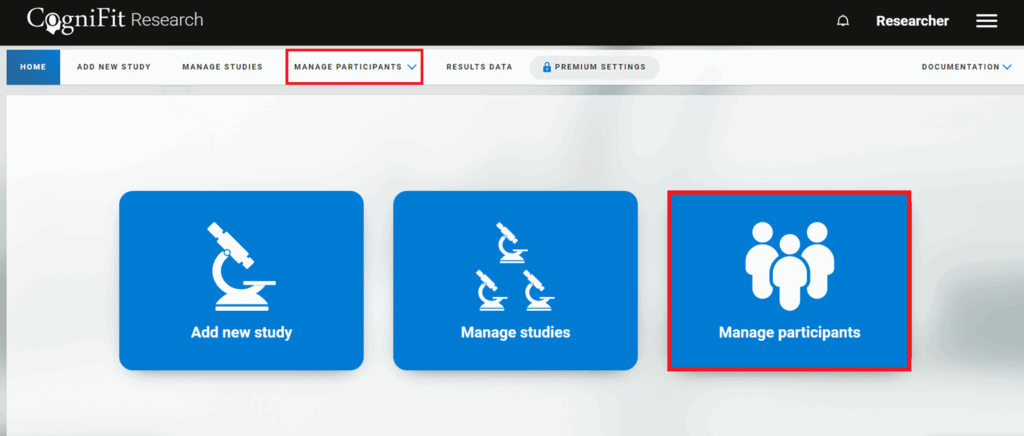
Go to the home page of your research account and click Manage Participants in the center right or in the menu at the top of the screen.
2. Choose the participant whose results you want to see
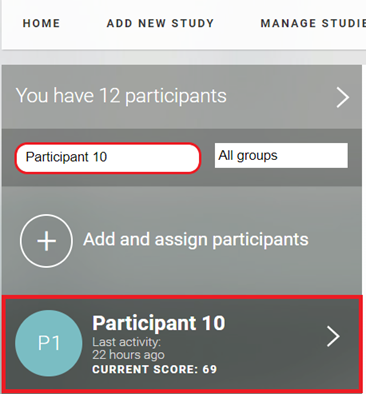
You’ll be taken to the participants page. Select a user from the list on the left or find the name of the participant in the search bar.
3. Scroll down the page to see the participant’s information and results
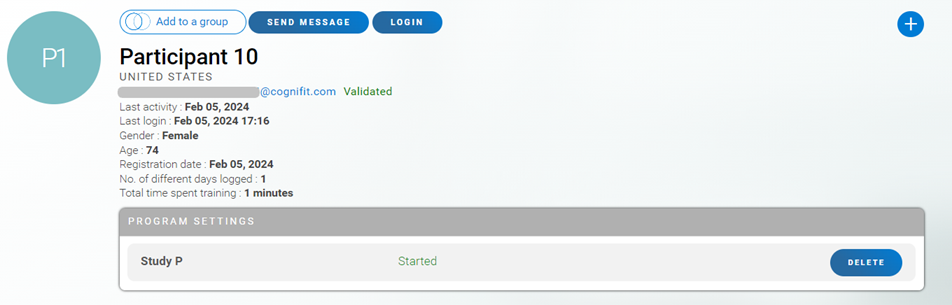
In the participant’s profile, you will see the user’s basic information (name, age, e-mail address, date of registration, login and last activity, etc., as well as the names of the study(s) in which this user is participating.
Scroll down the page to see more information.
3.1 Latest results
This section will only display CogniFit activities that generate cognitive scores; therefore, if you have added CogniFit assessments or training programs to your study, you will see information about the participant’s most recent activity in the participant’s profile.
If a participant has been assigned cognitive training, the participant’s profile will show the session number, the training and assessment tasks completed, the date
of the session, the abilities being tested, and the score received. Please note that the option to download a training session report is not available.
If the user has completed the assigned cognitive assessment, you can download the report in pdf format.
Note: Check the completion of the questionnaire by clicking on Complete Questionnaire and then on Continue.
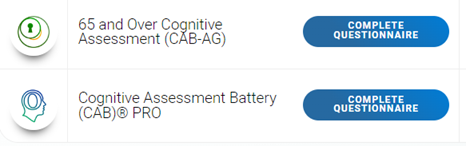
If necessary, you can edit the participant’s completed questionnaire (Edit information). Then prepare a report in pdf format by clicking the Prepare Report button.
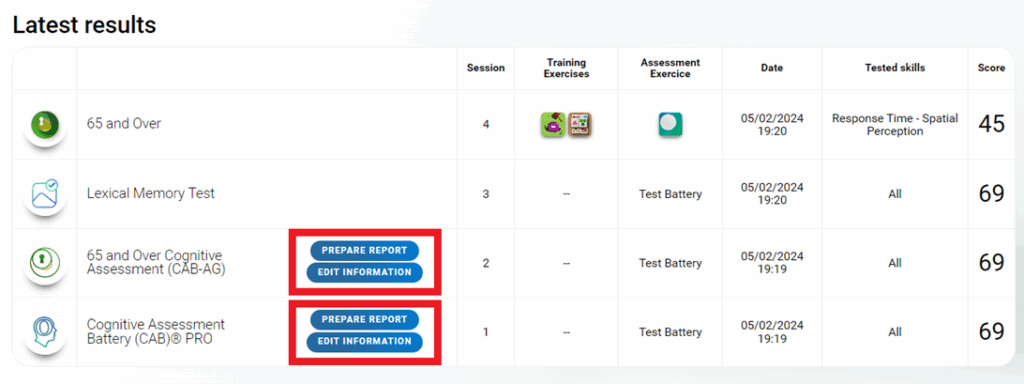
After that, download the report by clicking on the Download button.

To see an example report, click here.
3.2 Study activities
If you scroll down on the participant’s profile, you will see the Study Activities section. In this section, you will see the finalized steps of the study, completed by the participant, regardless of whether or not they generate a score.
Also in this section you can download a report with the results of free questionnaires (ASRS, BIST-2 and others) if you added them to the study. To do this, click on Download.
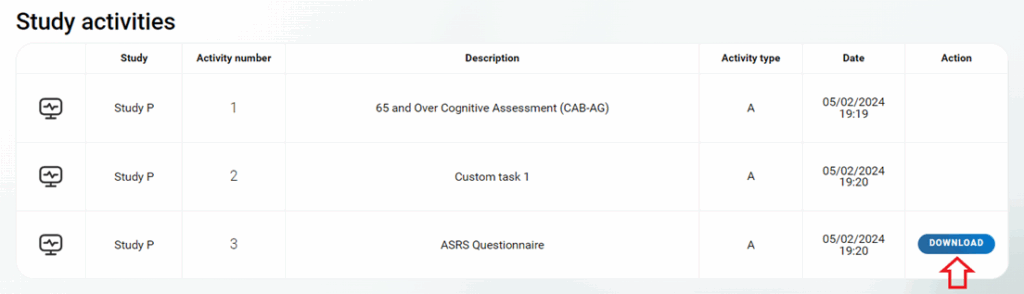
In order to keep track of the custom tasks performed by the participants, you can tick the checkbox in this section (the option will be available after the participant confirms the completion of the custom task in their account). Once you checked the participant actually did the custom task, you can validate it following the step below.

Confirm the completion of the task by validating it. To do this, check the box to the right of the task information.

3.3 Cognitive results
In the participant’s profile, the researcher will be able to find the participant’s results organized in an easy-to-understand general overview.
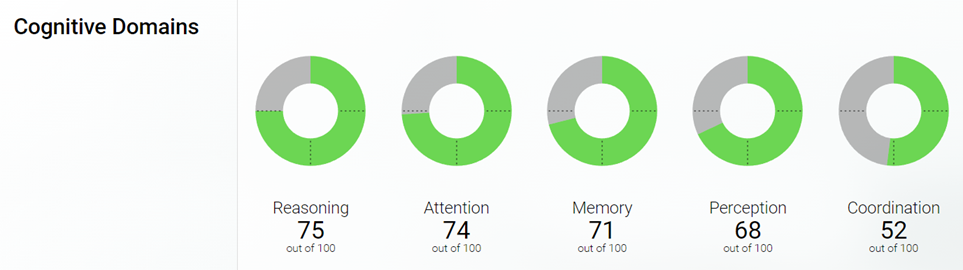
Next, they will find a sample of the general scores for the participant.
Note: A cognitive score is a composite measure of the current cognitive strength of different cognitive skills. The minimum cognitive score is 0 and the maximum is 100. A cognitive score is a quick way to know where a user is currently at cognitively, and to help assess their progress over time. Learn more about how the score gets calculated.
- Score between 0 – 25: below expected for the age and range.
- Score between 25-50: within the expected range for the age and gender, but below average.
- Score between 50-75: within the expected range for the age and gender but above average.
- Score between 75-100: above expected for gender and age.
The researcher will see the latest scores and the scores for various cognitive domains such as this:
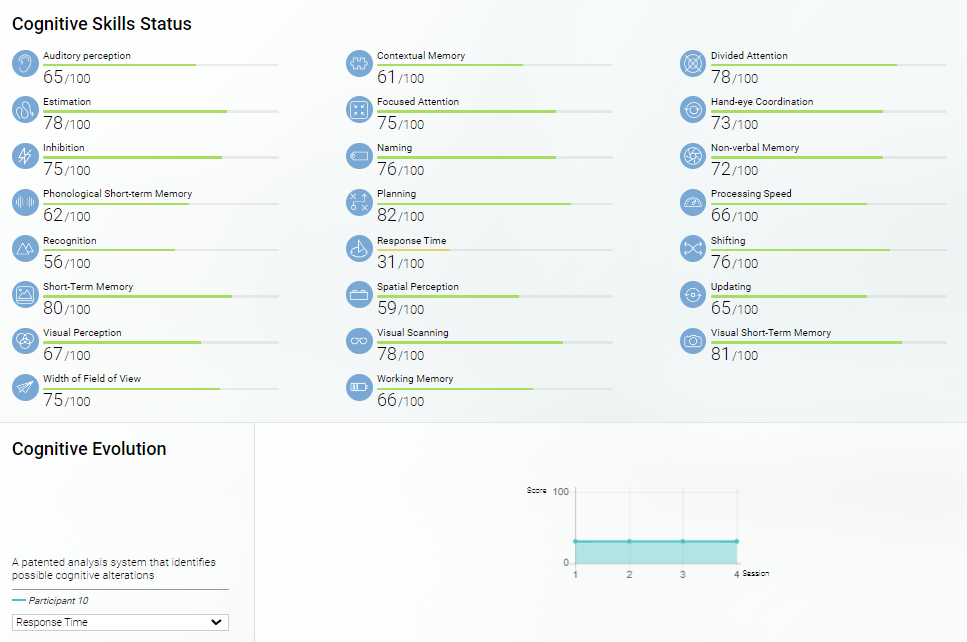
Cognitive skills status & Cognitive evolution
Further down the page, the researcher will see the detailed scores for each of the cognitive abilities and a graphic of the evolution of each ability from one session to the next.
4. Export participant data
If necessary, you can also export participant data in pdf format or a spreadsheet in CSV format by clicking on the “+” icon on the user profile page.
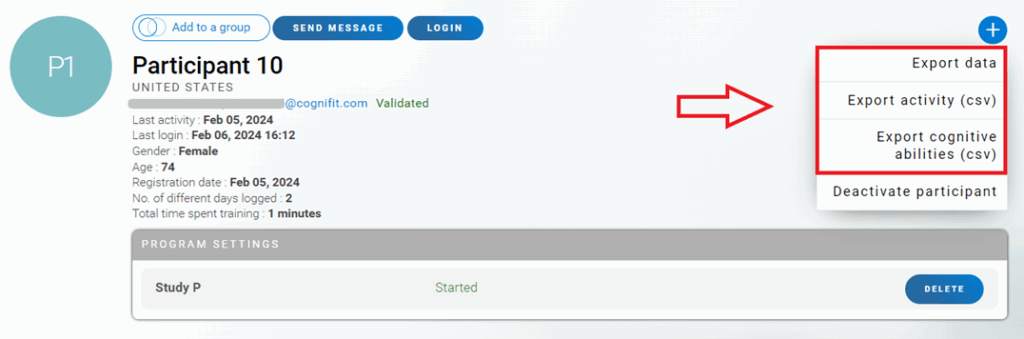
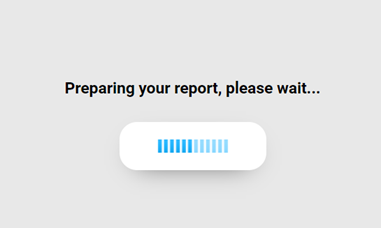
After selecting Export Data, the platform will begin automatically generating the report with the session data of the user and the scores of each cognitive ability. Please wait while this downloads.
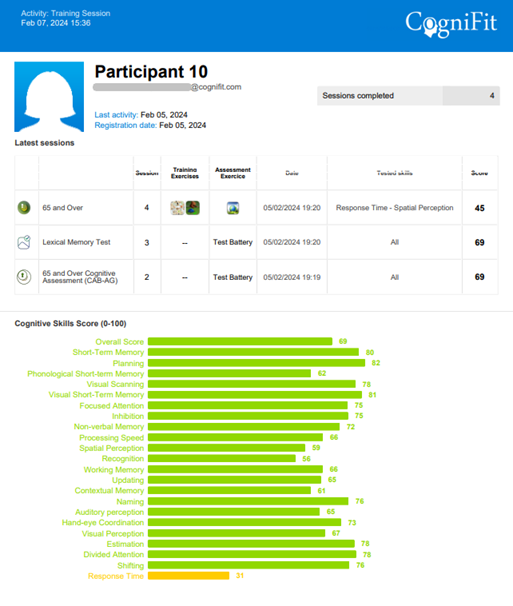
Once the download has completed, you will be able to view the PDF report with the essential information from the user’s profile.
Click the Export activity (csv) or Export cognitive abilities (csv) button if you want to download the user information in csv format. The spreadsheet will open automatically. It will be important to save the spreadsheet with the user’s name or number for later identification.
By clicking on the Export Activity (csv) button you will download the CSV with information about the activities completed by the user (including the type of training/assessment, session number, games played, tasks performed, date, cognitive abilities trained, average score of skills assessed and total training time).
By clicking on the Export Cognitive Abilities (csv) button you will download the CSV with information about the user’s cognitive abilities score (including the date, the type of activity performed, the overall score and the score for each cognitive ability).
Questions? Please contact our support team by sending an email to support@cognifit.com