 by
by In order for you to see your students’ results, you must first invite them to the platform so that they can complete the assigned interventions.
In this video you will learn how to see the results of your students.
More information in this article.
1. Navigate to the Students page
Log in to the CogniFit account and click on the Students tab in the navigation bar at the top of the home screen.
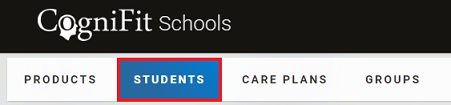
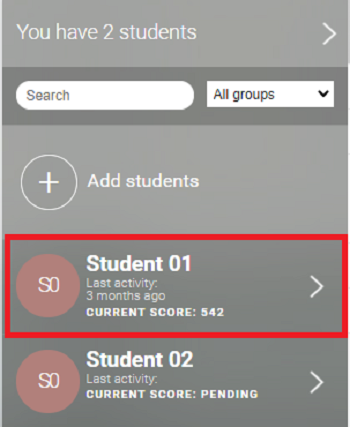
The educator will see a list of all of the students they currently have active.
2. Choose the student whose results you want to see
3. Scroll down to see the student’s results
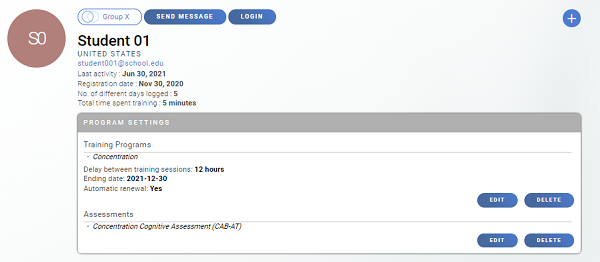
3.1 Latest Results
If the student has recently completed an evaluation or training, their results will appear in the student’s profile.
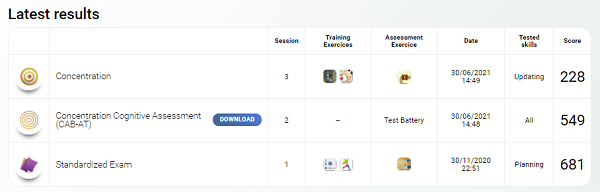
In the Latest Results section, the educator will see the Session number for the student, the programs they have completed (training or evaluation), the Date of the session, and the Score obtained.
If the student has completed a training session, the educator will see icons of the exercises completed during the session (in the Training Exercise column), the icon of the assessment task included in the training (in the Assessment Exercise column), and a list of the cognitive abilities trained and evaluated during the session (in the Tested Skills column).
If the student has completed an evaluation, the educator will be able to download a results report. This option is only available for assessments.
3.2 Cognitive Results
In the student’s profile, the educator will be able to find the student’s results organized in an easy-to-understand general overview.
Next, they will find a sample of the general scores for the student. The educator will see the latest scores and the scores for various cognitive domains such as this.
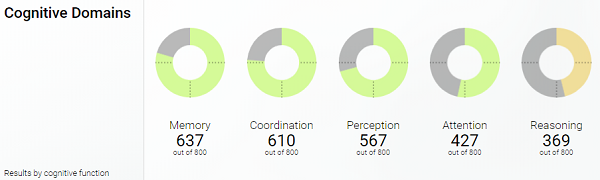
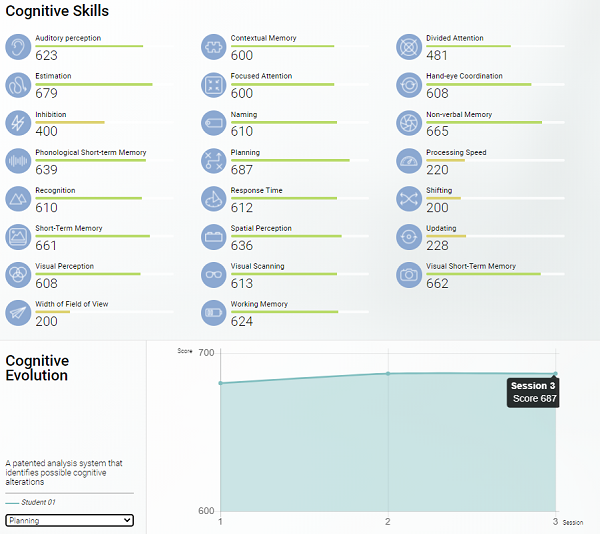
Further down the page, the educator will see the detailed scores for each of the cognitive abilities and a graphic of the evolution of each ability from one session to the next.
4. Note:
The educator can download the report by pressing Download from the student’s profile. They will only be able to download the report once the student has completed an assessment. Reports are not available for trainings.
Note: PDF reports are not available for the basic cognitive tasks of the Assessment section.
In addition, before downloading the report, the questionnaire must be completed. If the questionnaire was not administered, the student will need to complete it. Click on the Complete Questionnaire button and respond to the questions.
Notice: For students under 16 years of age, only the assessment and/or training activities are available. To complete the test and obtain the results, the educator will need to fill out the questionnaire.
Afterward, a cognitive results report will be generated and available for download.

To see an example report, click here.
The educator will also be able to export the student data. Read more about how to export the results here.
Questions? Contact us at support@cognifit.com