 by
by Once the study is created, the researcher should send participants an invitation link or invitation by e-mail or self-register participants so that they can proceed with the tasks.
If the researcher has sent participants a link to the study or an email invitation, these invited users must complete the registration process in CogniFit to start performing tasks within the study.
However, if necessary, the researcher can create and activate accounts for their study participants on their own. This may be required, for example, if the study involves children, elderly people or people with any pathologies, or if the researcher wishes to prepare everything in advance for their study. In this case, there is no necessity to send invitations to the participants as the researcher will take care of creating their accounts on their own.
For more information on how a researcher can self-enroll a new participant, see section 2.5 of this article.
In some cases, for whatever reason, a participant was unable to self-register with CogniFit even though an invitation was sent to them. In this case, the researcher can also activate the participant’s account on their own.
Let’s look at both cases in more detail.
1. Creating a new participant account by the researcher
1.1 Log into your researcher account and go to the Participant Management page
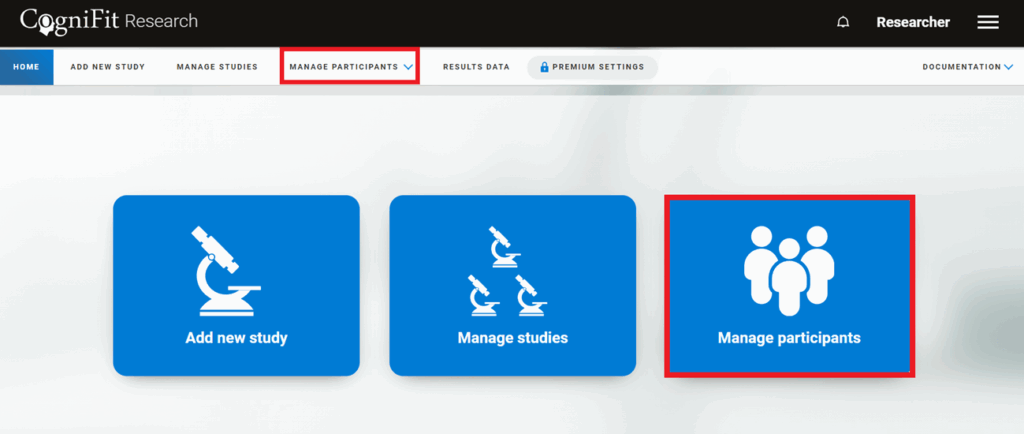
Click on “Manage Participants” on the right or top of your account’s home page.
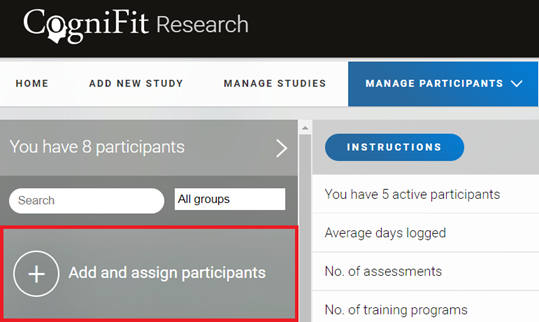
You will be taken to the participants page. Select the “Add and assign participants” option.
1.2 Add the participant’s first name, last name, and e-mail address
Attenion: If you want to register participants yourself, you should add them to the platform individually. If you add a general CSV list, only the option to send invitations is available.
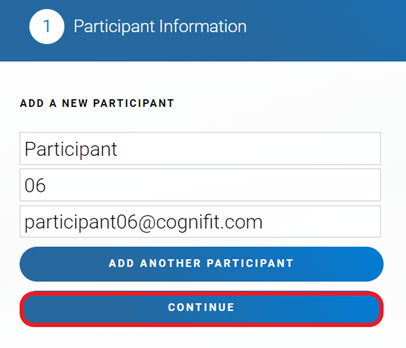
Note: If the researcher wants to add more than one participant, the researcher must enter the details of the first participant and click the “Add another participant” button. This process can be repeated until the researcher has added all participants. When finished, click the “Continue” button.
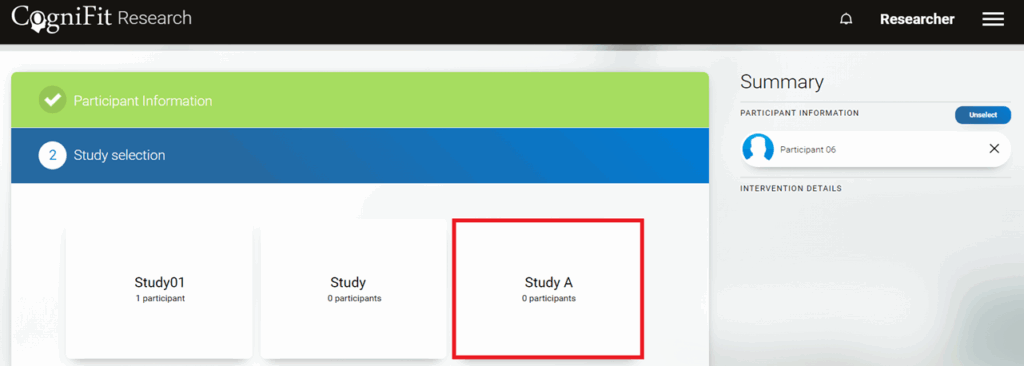
1.3 Add a participant to the study by clicking on the study name
1.4 Click on “Start Now” to register a participant account
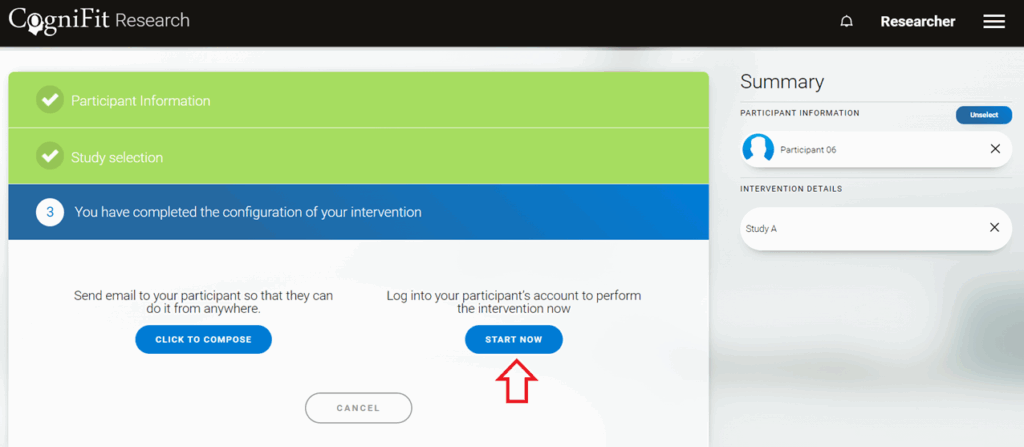
Note: If you invite more than one participant at a time, this option will fill in the data of the first invited user by default. To invite the rest of the participants it will be necessary to repeat the process manually.
Next, follow the steps outlined in section 3 of this article.
2. Activate the account of a participant to whom an invitation has already been sent
If you have previously sent an invitation to a participant but they have not yet signed up, you can help activate that participant’s account in just a few clicks.
Go to the participant management page and select the user whose account you want to activate by clicking on his name. Click “Login” in the user’s profile.
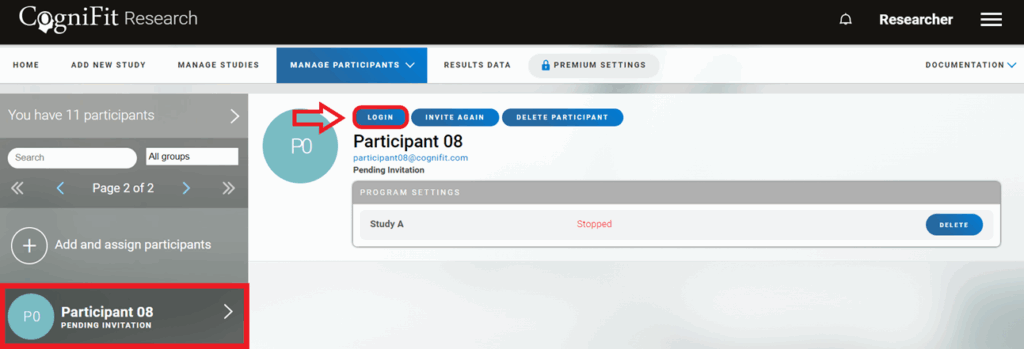
Next, follow the steps outlined in section 3 of this article.
3. Enter the participant’s data
Clicking the “Start now” button will take you to the participant registration page.
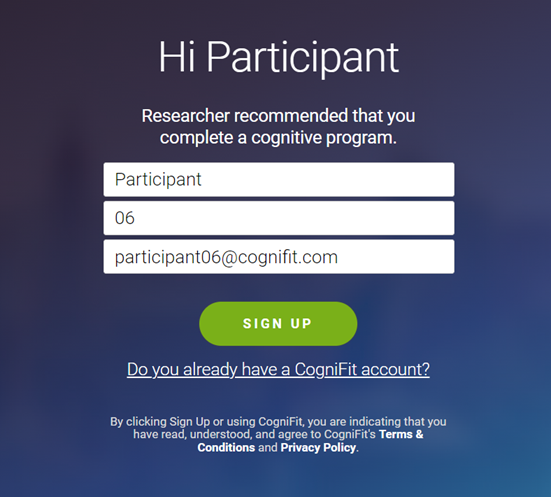
To complete the registration, click on the “Sign up” button and follow the platform’s instructions.
Note: After creating an account, please be sure to provide the study participant with all the necessary information (email address, password…) to access their account.
Attention: An email will be sent to the participant’s email address that you registered with, asking you to accept electronic consent to validate your account and complete your registration. It is necessary to accept it by clicking on the blue button in the body of the email and following the link. Read more in section 4 of this article.
If you have any questions you can contact our support team by sending an email to support@cognifit.com