 by
by To create a researcher account, follow the instructions in this article.
Attention: A researcher account can only be managed using a desktop or laptop computer. This option is not available for mobile devices.
Researchers can purchase the necessary licenses for assessment batteries and/or trainings in two ways: through their account settings menu or directly through the process of creating their study design. Let’s take a closer look at both methods.
1. Purchase licenses in your Account Settings
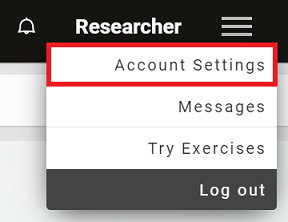
Log in to your researcher account. Click on the menu button in the upper right corner of the screen and select the “Account Settings” option.
1.1 Purchase assessment licenses
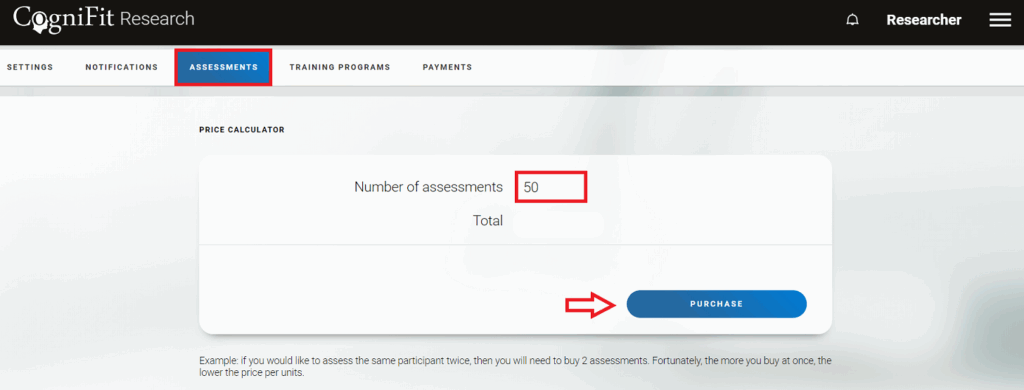
Select the “Assessments” tab. On the page that opens, select the required number of licenses and click the “Purchase” button.
Note: As a a researcher, you benefit from reduced prices. The more cognitive assessment licenses you purchase at once, the lower the unit price. Learn more about how the assessment licenses work. The assessment license is valid for any type of assessment on the platform.
Go to section 3 of this article to finalize payment.
1.2 Purchase training licenses
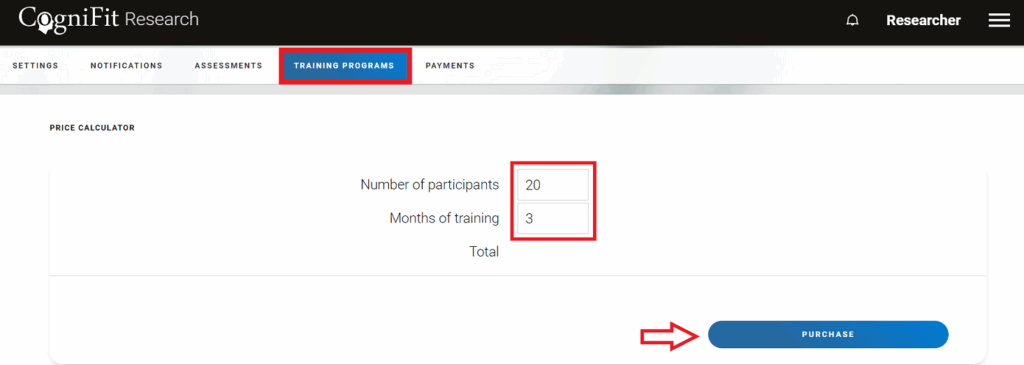
Select the “Training Programs” tab. On the page that opens, enter the number of participants, the number of months of their training and click the “Purchase” button.
Note: As a researcher, you have the advantage of reduced license prices. The more monthly training licenses you purchase at a time, the lower the unit price. Learn more about how monthly training licenses work. The training license is valid for any type of training program on the platform.
Go to section 3 of this article to finalize payment.
2. Purchase licenses when creating a study design
You can also purchase assessment and training licenses directly through the process of creating your study design. This is handy if you don’t know in advance exactly how many licenses you will need.
In the last step of the study creation process, after you select all the necessary interventions and specify the number of study participants, the platform will prompt you to purchase licenses if you do not have enough on your account to start the study (see section 6 of the article on how to create a study).

Note: In this case, you will not have to buy separately licenses for assessments and training, the platform will automatically calculate the full cost of the products taking into account the programs you have chosen and the number of study participants.
Go to section 3 of this article to finalize payment.
3. Complete your purchase
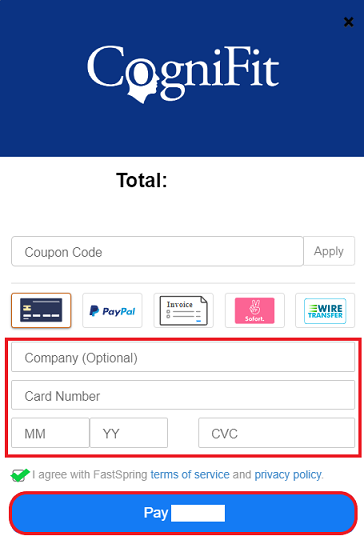
Any of the above options will take the user to the payment page. Choose the available payment method, enter the required payment details and accept the privacy policy and terms of service of the payment platform. To finalize the purchase, click the blue payment button. The total price is automatically updated in your currency, when supported.
The licenses you have purchased will be immediately available in your account. If you have a valid promotional code, find out how to use it here.
If you have any questions you can contact our support team by sending an email to support@cognifit.com