 by
by Before trying to log in, you need to make sure you have previously created and configured your CogniFit account (click here to see how to sign up for CogniFit).
1. How to login?
1.1 If you are using a computer
To log in, you have to click on the Login button in the upper right corner of the CogniFit home page.
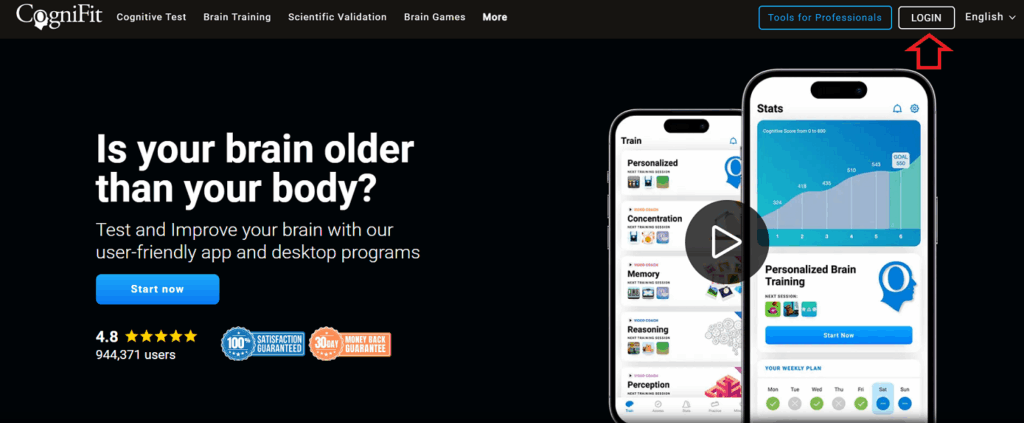
You will then be given the option to log in in 5 different ways: through your CogniFit account (previously created) or through your Facebook, Twitter, or Google account, or with your Apple ID. Make sure to always use the same option, or you will run the risk of creating different accounts.
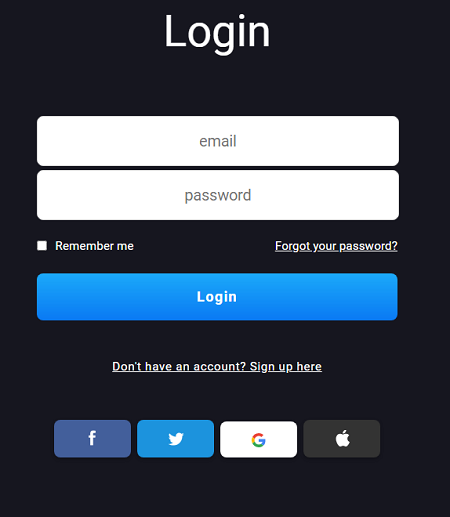
If you are logging in through your CogniFit account, simply enter your email address and the password you chose when creating your account.
If you log in through your Facebook, Twitter, Google, or Apple account, a pop-up window will appear asking you to enter certain information from your Facebook, Twitter, Google, or Apple ID accounts.
1.2 If you are using a mobile device
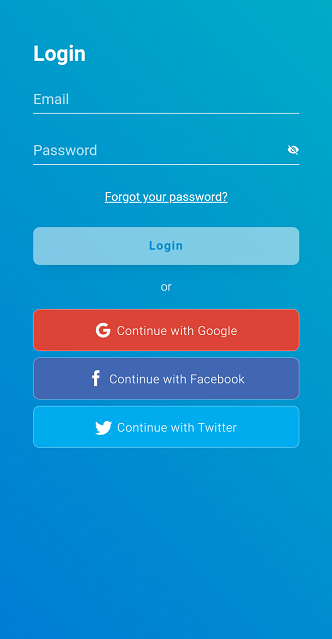
Open the app and click the Login button at the bottom of the screen.
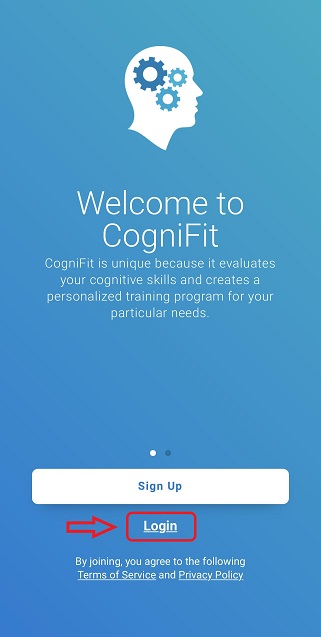
1.2.1 If you are using an Apple mobile device:
You will be given the option to log in in 5 different ways: through your CogniFit account (previously created) or through your Facebook, Twitter, or Google account, or with your Apple ID. Follow the instructions in the app to log in.
Make sure to always use the same option, or you will run the risk of creating different accounts.
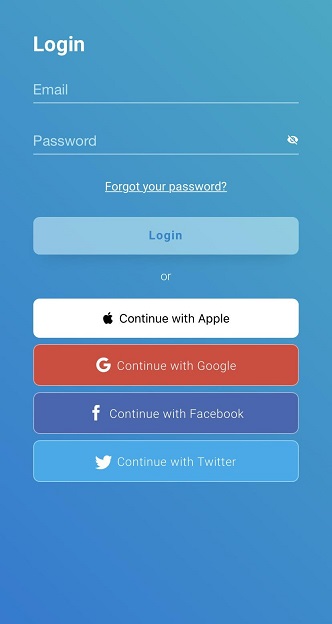
1.2.2 If you are using an Android mobile device:
You will be given the option to log in through your CogniFit account (previously created) or through your Facebook, Twitter or Google account.
Make sure to always use the same option, or you will run the risk of creating different accounts.
2. What if I still can’t log in?
If you’re still having difficulty logging in, just check the following:
- Have you correctly entered the email address and password that you chose when creating the account or your Facebook, Twitter, Google or Apple data?
- Have you entered an email account other than the one you first used in CogniFit?
- Have you made mistakes when pressing the keys, nor have you entered an unwanted space before or after your email?
- Does your keyboard have “Caps Lock” activated, since the password is case-sensitive?
If you have verified that everything is correct and it still does not work, you will have to ask for a new password. To do this, you can read the article “I forgot my password.“
It is important that you keep in mind that we cannot recover your account if you do not remember which one you registered with. In this case, you will need to create a new account. We’re sorry for the inconvenience.
If you have any questions you can contact our support team by sending an email to support@cognifit.com