 by
by Once you have set up your CogniFit account for families, you can start inviting family members.
The family account is not available in the app and needs to be used on a pc or laptop. If you want your family member to use the CogniFit app for Android or iOS or to login via their own account and not the family account, please scroll down to 2. Adding a family member that can use the CogniFit app.
1. Adding a family member
A family account holder can add family members to the platform in two ways:
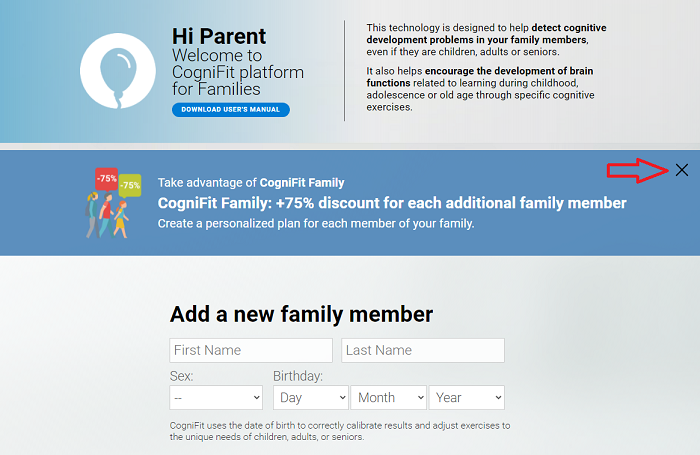
1.1 When logging in to your family account, scroll down the home page and you will see a form to fill in your family member’s details. You can add a family member on this page or, by clicking the “X” in the blue bar, to go to the control panel page.
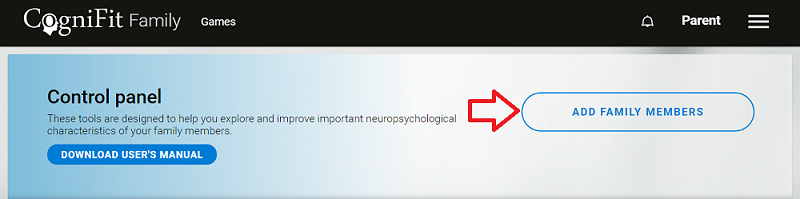
1.2 In the Control Panel page that opens, click on the “add family members” button
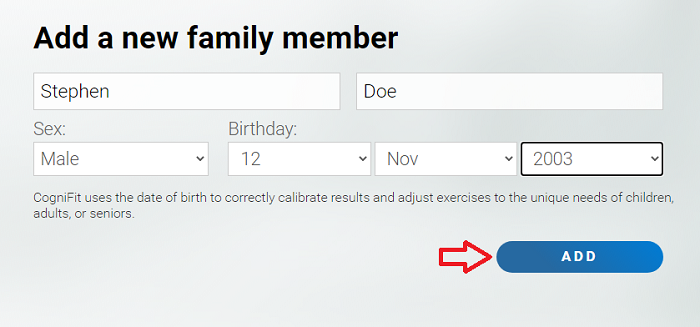
1.3 Next please fill in the requested details and click on “add”
1.4 In the next screen, the program will ask you to choose between two options: if you want your family member to have their own account from which to receive the evaluations or training; or if you prefer that your family member perform the assigned evaluations or training from the families platform. If your family member is going to use your account, click “Add” under the word “No.”
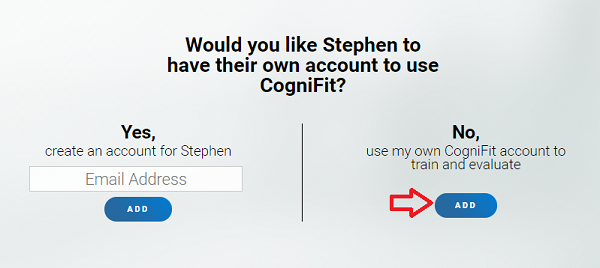
Attention: If you want your family member to use the CogniFit app for Android or iOS or to login via their own account and not the family account you will need to add the family member with an email address. For further instructions please scroll down to Section 2 to see instructions for Adding a family member that can use the CogniFit app.
1.5 The dashboard page will automatically open. The next step will be to choose the type of intervention you want to assign to your family member: either Assessment or Cognitive training. To see what tests and/or trainings are available, click the arrow and open the drop-down menu in the corresponding section for tests or trainings.
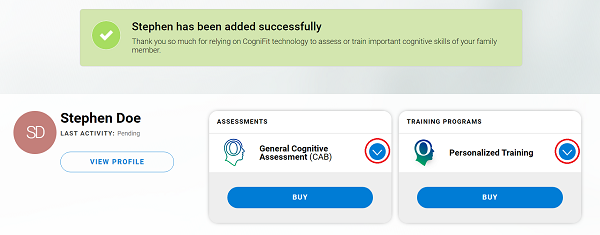
Select an assessment
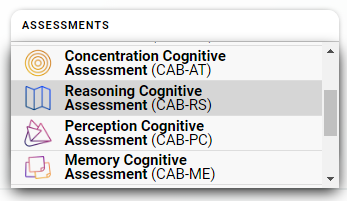
or a training
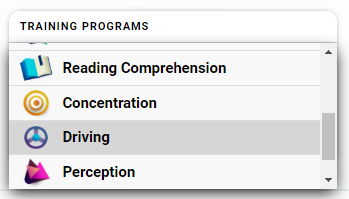
1.6 Once you have selected the desired option, click on the “Buy“button to continue.
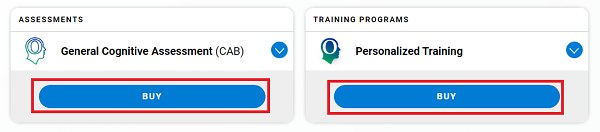
The payment page will then open. To purchase the program, fill in all the necessary information and complete the purchase.
1.7 Your family member will be able to start the assigned test or training by clicking the “Start Now” button.
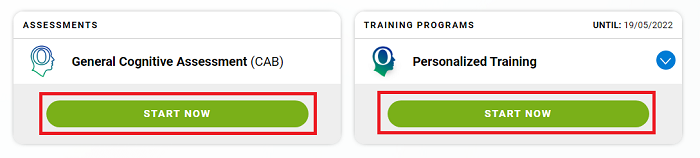
We recommend that the assessment be completed first as this will establish the baseline for the training program.
Note: If necessary, you can change the type of training assigned to a family member after purchasing the subscription. To do this, select the desired workout by clicking the drop-down arrow and click Save.
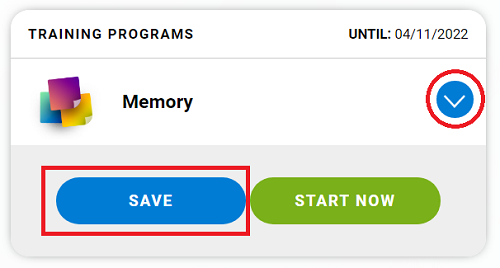
To start the assigned workout, press the “Start Now” button.
2. Adding a family member that can use the CogniFit app
To add a new family member who will use their own account on a mobile device, follow these steps:
2.1 Repeat the steps described in sections 1.1 through 1.3
2.2 Then enter your family member’s email address below the word Yes and click the “Add” button.
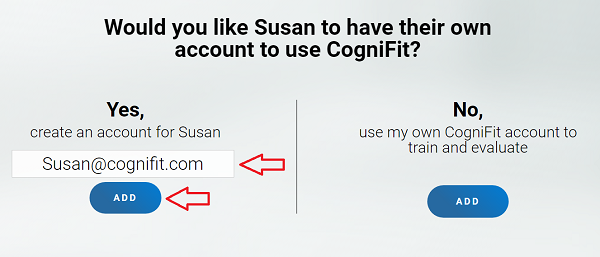
If you choose “no” the family member will be unable to use the app and needs to login on the family account, via a PC or laptop, to access their training.
2.3 Follow the instructions given in section 1.5 through 1.7
2.4 To make sure your family member has their own account and can use the CogniFit app as well, you need to create an individual account for personal use.
Please log out of the family account and register your family member using the same email address you used to add the family member to the family account.
The individual account of the family member is now linked to the family account where you will receive the results.
If you have any questions or need help with the email address as your family member has none, please contact us on support@cognifit.com