 by
by 1. Go to the main dashboard of your Family Account
Sign in to your CogniFit account. The account manager will see a list of all of the family members who have been added to the platform. If a family member has recently completed a training or evaluation, their results will appear in their profile. To access a more detailed view of the results, click on View Profile.
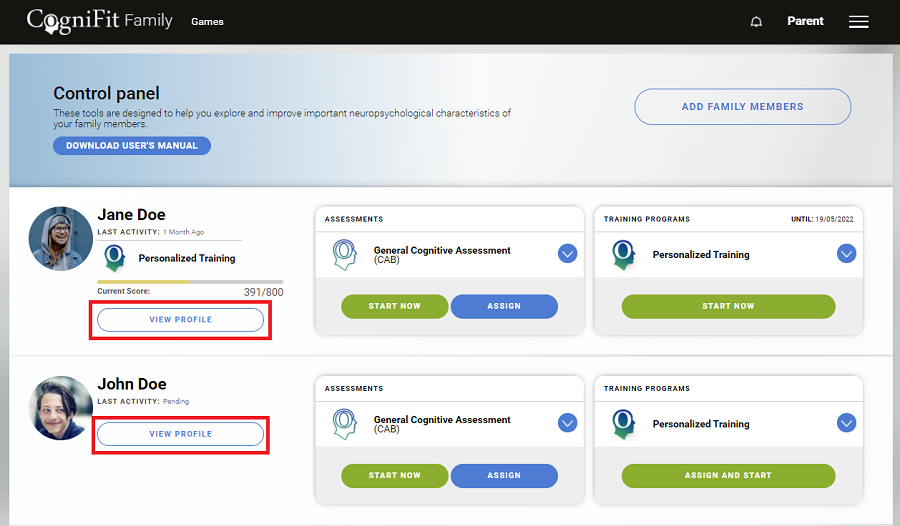
2. Go to the profile page of the family member
After clicking on View Profile, a page will open with the results of the selected family member.
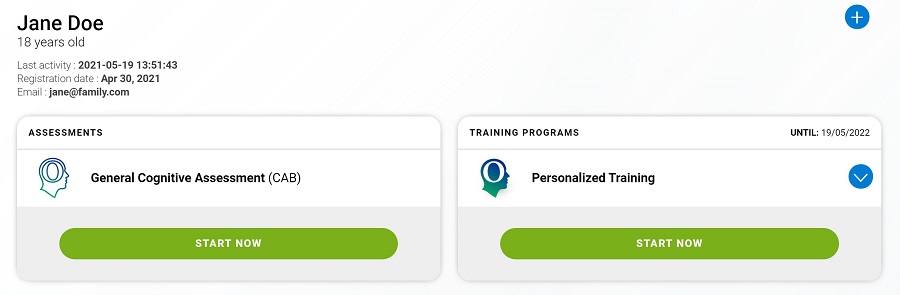
3. Scroll down to see the family member’s results
3.1 Latest Results
If the family member has completed an evaluation or training, their results will appear in this section.
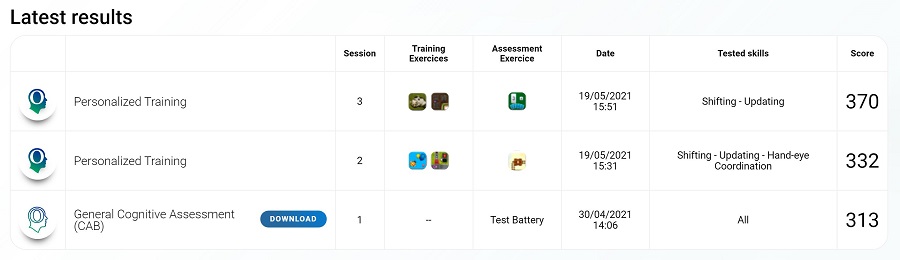
In the Latest Results section, you will see the Session number, the completed programs (trainings or evaluations), the Date of the session,and the Score obtained.
If the family member has completed a training session, you will see icons for the exercises completed during the session (under the Training Exercises column), the icon of the evaluation task included in the training (under the Assessment Exercise column), and a list of the cognitive abilities trained and evaluated during the session (under the Tested Skills column).
If the family member has completed an evaluation, the account manager will be able to download a results report. This option is only available for evaluations.
3.2 Cognitive Results
In the profile of each family member, the account manager will be able to find the family member’s results organized so that it is easy to get a general overview of the profile and cognitive level.
First you will find the scores for each of the Cognitive Domains.
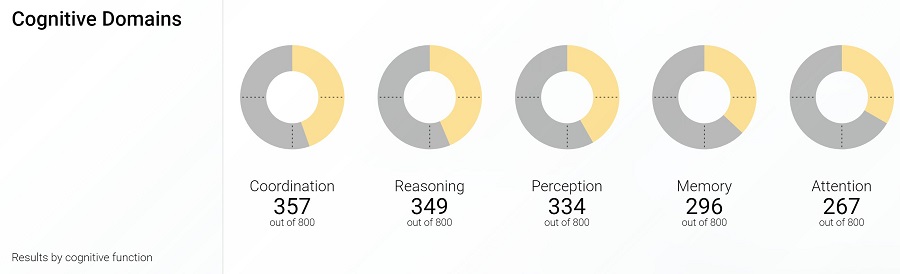
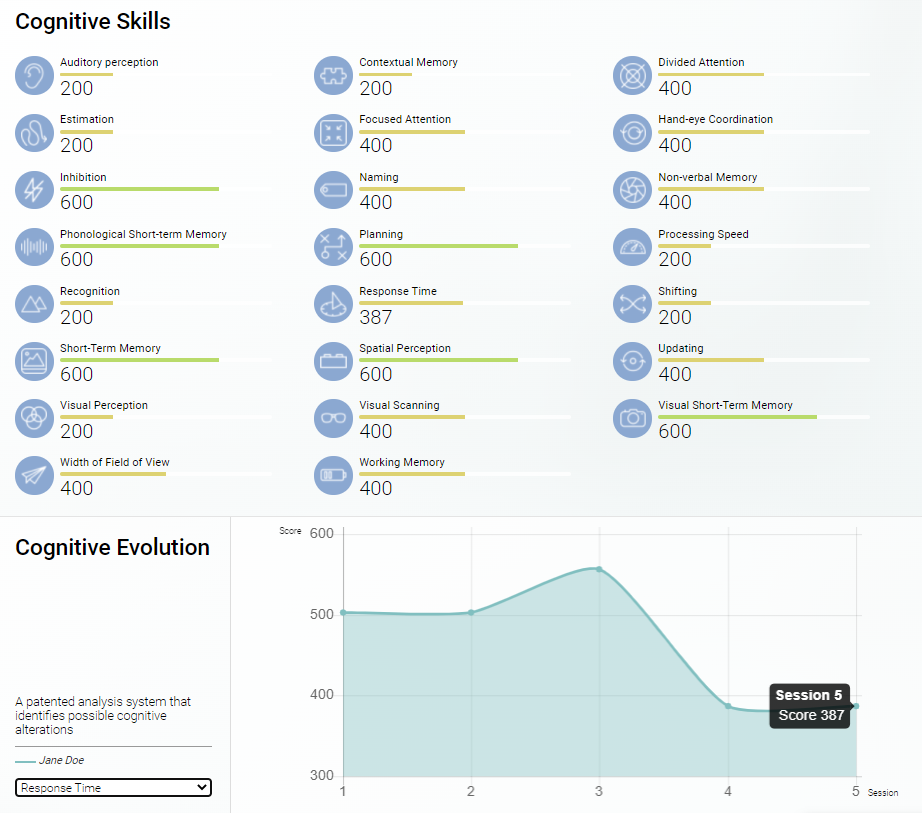
Scrolling down further, the account manager will see detailed scores for each of the cognitive abilities and the cognitive evolution of the user.
4. Note:
You can download the results report by pressing Download from the family member’s profile. You can only download reports for evaluations, not for trainings.
Remember: Family members younger than 16 years old will only have access to the assessment and/or training activities. The account manager will need to complete the questionnaire for them in order to obtain the results report.

After completing the questionnaire, the results report will be generated and available for download.
To see an example report, click here.