 by
by Before beginning, the educator should create an account on the CogniFit Education Platform.
In this video you will learn how to create an account on our platform for educators and schools.
Attention: registration for the education platform is available via computer only. This option is not available on CogniFit’s mobile applications.
Read the step-by-step instructions in this article for more details.
1. Access the educational platform for schools and teachers
You can create an educator account by accessing the educational platform directly or from the CogniFit home page.
Before registering you have to indicate in which country or region you are located. The browser will automatically detect your location. To confirm, click the “Continue” button in the blue bar at the top of the screen.

If you want to change country or region, click on the drop-down menu arrow and select the “Other country or region” option. Click the “Continue” button.

On the page that opens, choose a country or region from the list and click on the selected option to access the CogniFit page for your country or region.

Note: If you want to change the platform language, select the desired language from the drop-down menu in the upper right corner of the page or change the language after registration in your profile settings, following the instructions of this article.
1.1 To register from the main page of CogniFit choose the option “Education” in the tab “Tools for Professionals” at the top of the screen
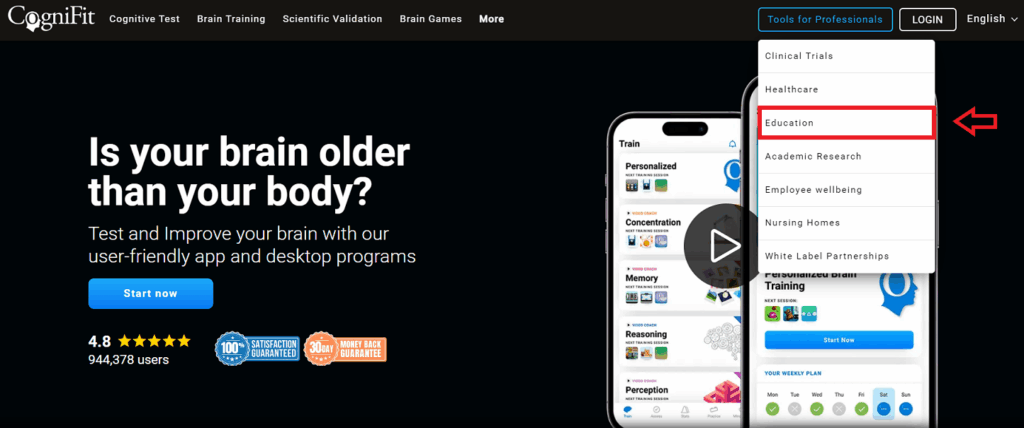
Or scroll down the CogniFit home page to the “Education Professionals” section and click the “Learn More” button.

Both options will take you to the CogniFit Educational Platform page.
1.2 On the Educational Platform for Schools and Teachers page, click the JOIN button.

2. Enter the requested information
Fill in your name, email address, and the name of your school or organization and click Next. This email address will be used to send you important account information and student progress.
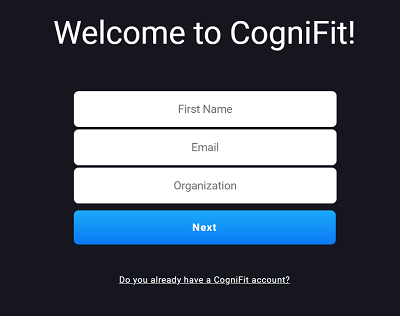
3. Create the password
Please enter a password. Please note that the password must be at least 6 characters long. Click on Continue.
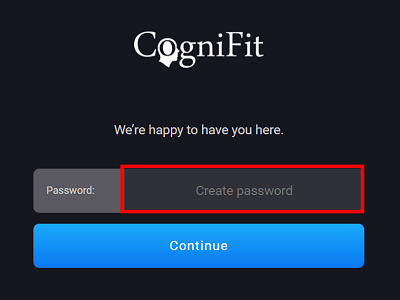
Congratulations, your account is now set up!
If you have any questions you can contact our support team by sending an email to support@cognifit.com