 by
by If you don’t already have a participant account, you can sign up for CogniFit in two ways:
- through the study invitation link or
- through an invitation email sent to you by the researcher.
Alternatively, the researcher can give you an email address already registered with CogniFit to participate in the study. Read about how a researcher can self-register participants in their study here.
In this video, you will learn how participants can sign up for CogniFit.
*The option for mandatory CAB assessment at the time of participant enrollment is no longer used.
Read more about how a participant can register with CogniFit in this article.
Note: To register in CogniFit as a study participant we recommend using a personal computer or laptop browser. You can also use a mobile browser. If you are using a mobile device we suggest using the CogniFit mobile app to complete the assigned interventions. Remember to memorize and save your login and password to access CogniFit.
1. Registration via the link-invitation to the study
Follow the link provided by the researcher to the study registration page and proceed with the instructions in section 3 of this article.
2. Registration by email invitation
After the researcher has added participants to their account, the participants receive an email invitation to register for CogniFit. Note that the researcher can also activate the participants account in the participant’s name.
If the researcher has sent you an invitation to participate in the study by email, the following message will appear in your inbox (the content of the message may vary depending on the text entered by the researcher).
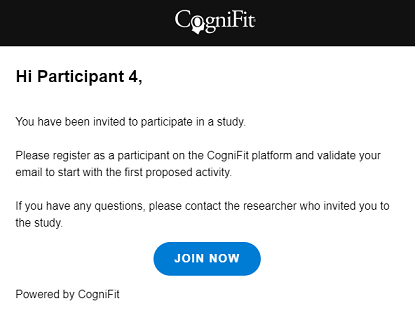
Click on the “Join Now” button.
3. Complete the account registration
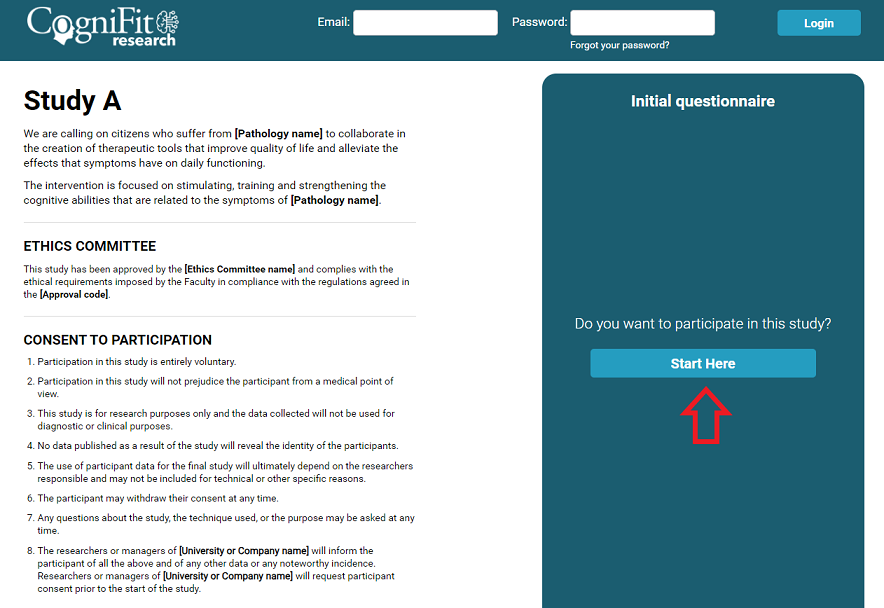
3.1 Whether you receive an email invitation or open the invitation link provided by the researcher, you will be taken to the study registration page.
On this page you will find information about the study, the ethics committee, participation consent, and other important information about the study. If you would like to participate in the study, click on the “Start Here” button on the right side of the screen.
If you are using a small window (e.g., in a mobile device), a “I want to participate” button will appear on the top, below the login button.
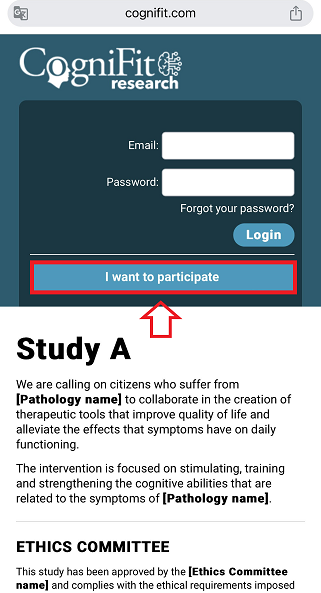
It will lead you to the “Start Here” button.
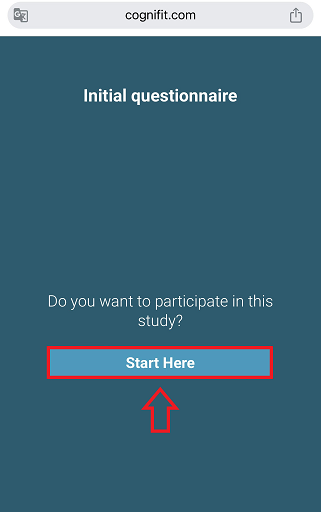
3.2 The study may include an initial questionnaire to help you determine if you qualify it. Make sure to answer all the questions.
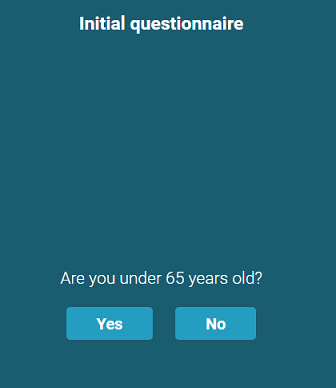
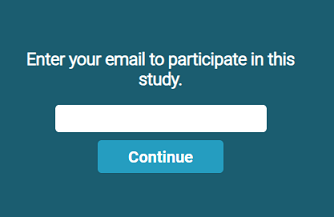
3.2.1 If your answer meets the selection criteria for study participants, you will be prompted to enter your email address.
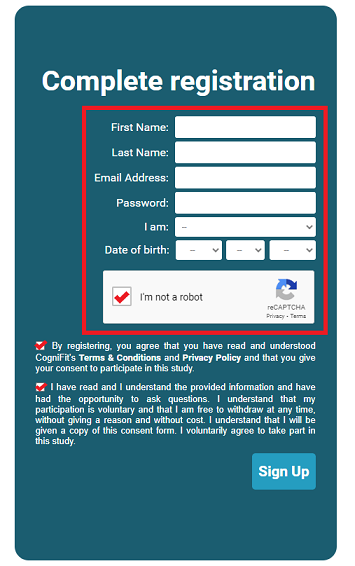
Finish your registration by completing all the required fields and click on “Sign Up”.
You will then be automatically redirected to your participant account and the platform will prompt you to validate your email. Read more in section 4 of this article.
Note: If you would like to use the mobile app to perform assigned interventions, download the CogniFit app from App Store or Google Play. Please use the same e-mail address with which you registered as a study participant as your login. The email address is the only way to link your participant account with the investigator’s account.
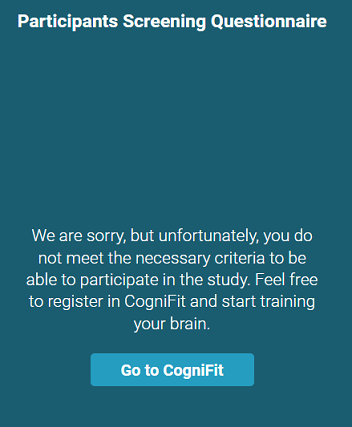
3.2.2 If your answer to the screening question does not meet the criteria for participation in the study, you will see a message similar to this one.
4. Validate your participant account
Once you register, you will automatically be taken to your participant account. You will see the following:
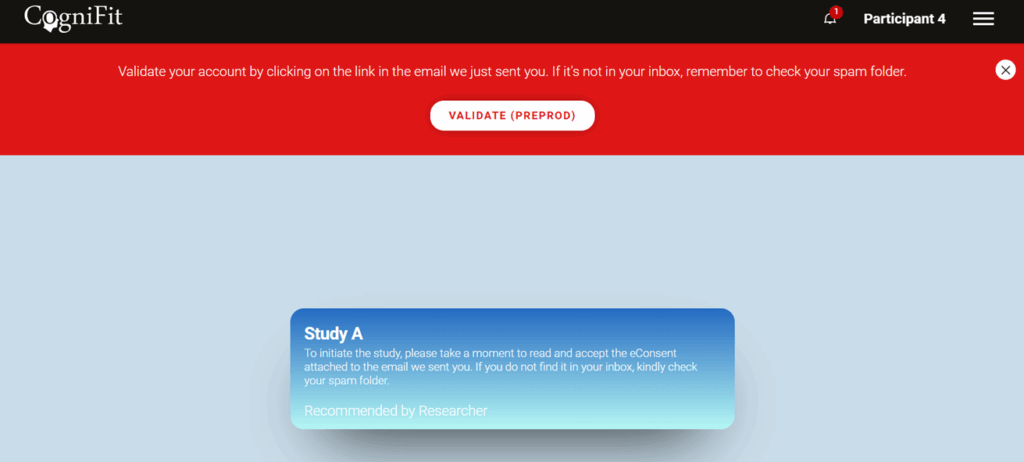
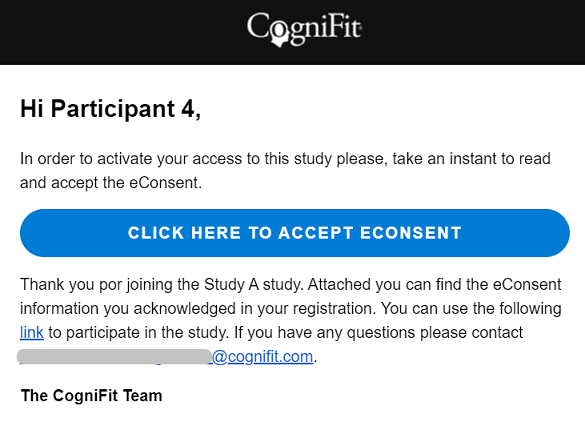
To validate your participant account, simply click the “Click here to accept econsent” button in the email you received.
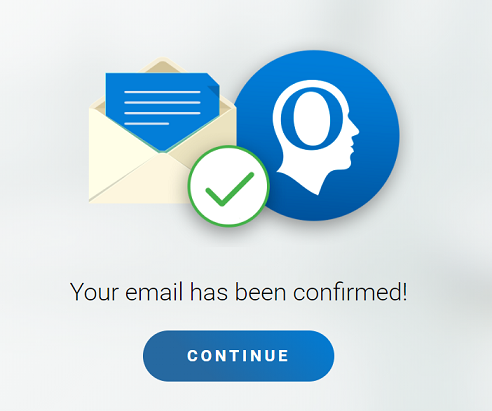
You will see a confirmation that your account has been validated. Click the “Continue” button.
Note: If you did not receive this email, click on the red banner on your account homepage to receive the email again. Make sure you wrote your email address properly.
You can now proceed with the tasks assigned to you by the researcher. You can read more about what the study participants see here.
If you have any questions you can contact our support team by sending an email to support@cognifit.com