 by
by You can send messages to your patient/student in two ways: through the appropriate option in your account menu or from the user’s profile page. Let’s look at both methods in more detail.
1. Contact users via the “Messages” menu option
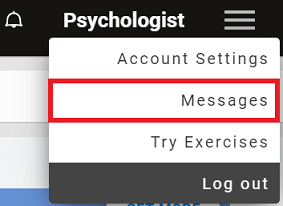
1.1 Go to your health care professional/teacher account and click on the menu in the upper right corner of the screen. Click on “Messages”.
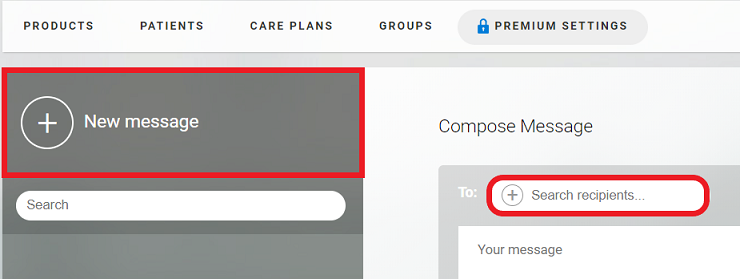
1.2 You will be taken to the messages page. Click on “New Message” and then find the patient/student you want to send the message to.
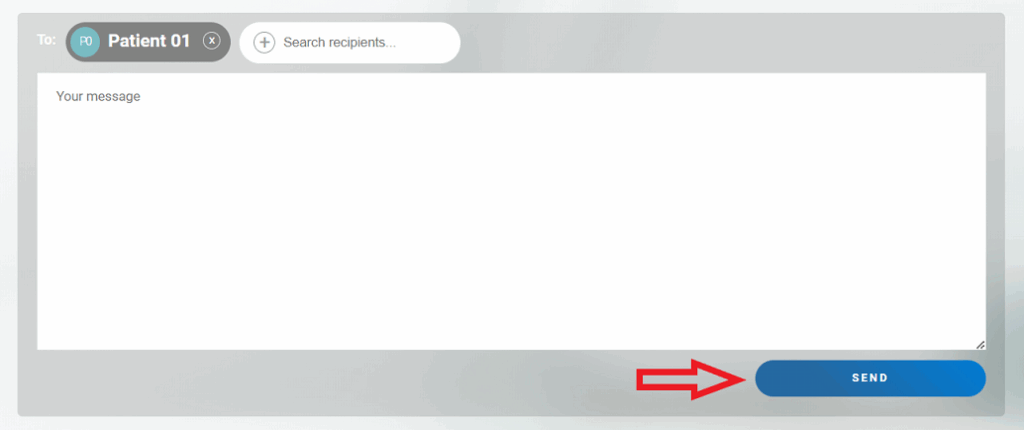
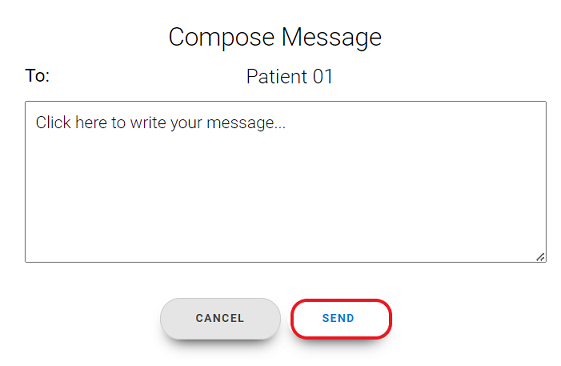
1.3 Type your message and click “Send”.
2. Contact the users via a message in their personal profile
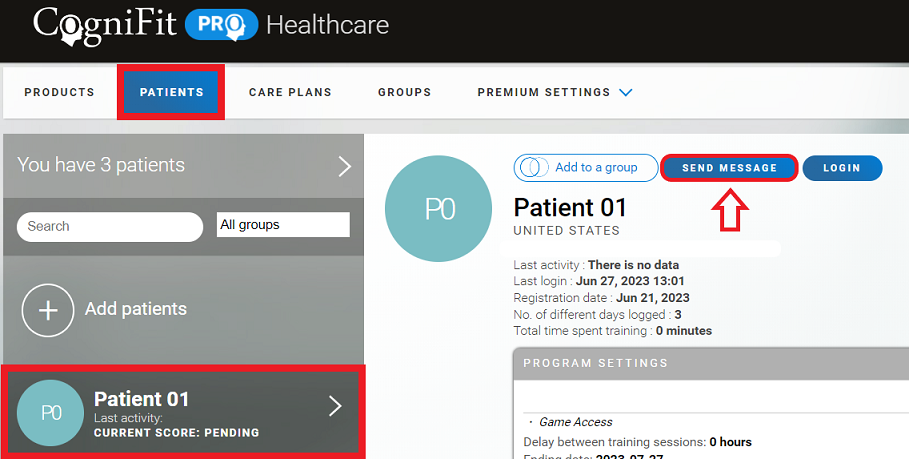
2.1 Go to the user profile in your professional account and click “Send Message”.
2.2 Type your message and click “Send”.
3. The user will receive a notification of the message
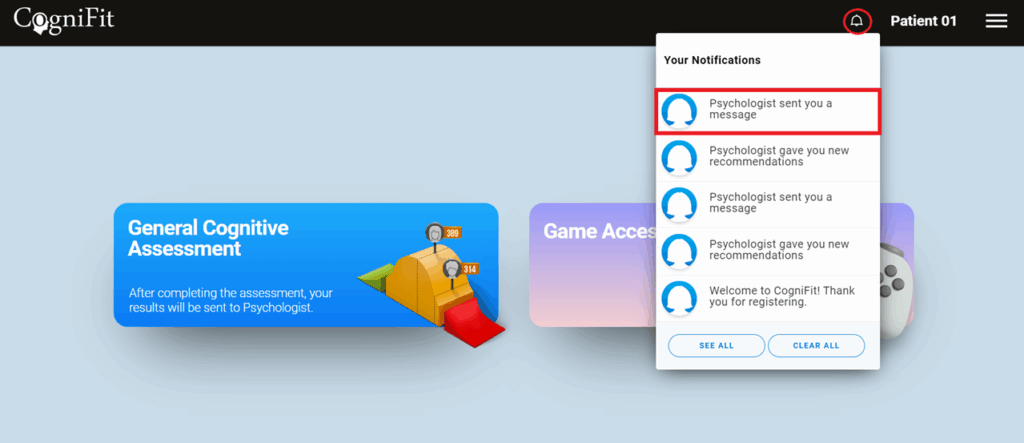
Your patient/student will see a message notification on their account notification bar. The user can reply to you by clicking on the selected message.
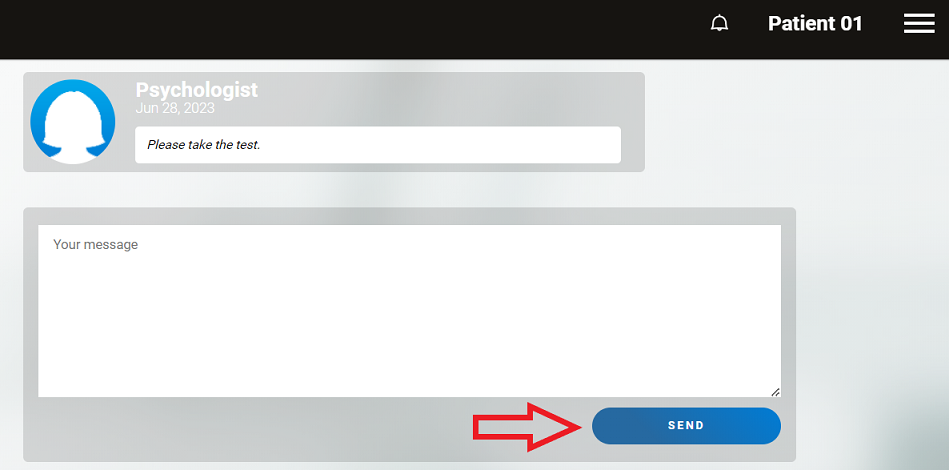
Write an answer and click “Send”.
4. Notification of your patient/student response
You will see a notification of the user’s response in your professional account.
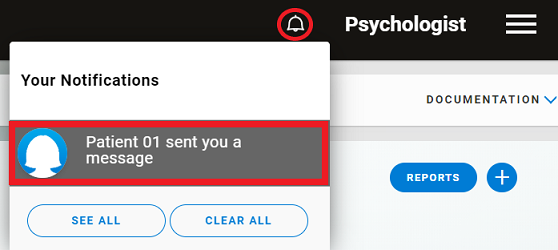
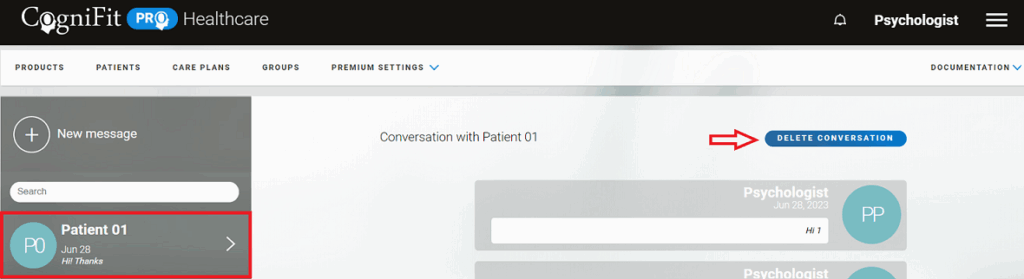
Clicking on the message will take you to the message page, where you will see the correspondence with the user. You can send a new message or delete the correspondence by clicking on “Delete conversation”.
If you have any questions you can contact our support team by sending an email to support@cognifit.com