 by
by To create a school account, follow the instructions in this article.
In this video you will learn all about CogniFit licenses for an educational account.
Attention: A school account can only be managed using a desktop or laptop computer. This option is not available for mobile devices.
1. How to purchase assessment licenses
Note: As a teaching professional, you benefit from reduced prices. The more cognitive assessment licenses you purchase at once, the lower the unit price. Learn more about how the assessment licenses work. If you want to assess the same student multiple times, you will need to purchase as many assessment licenses as the number of assessments you want your student to complete.
Note: The assessment license is valid for any type of assessment on the platform.
1.1 On the welcome page
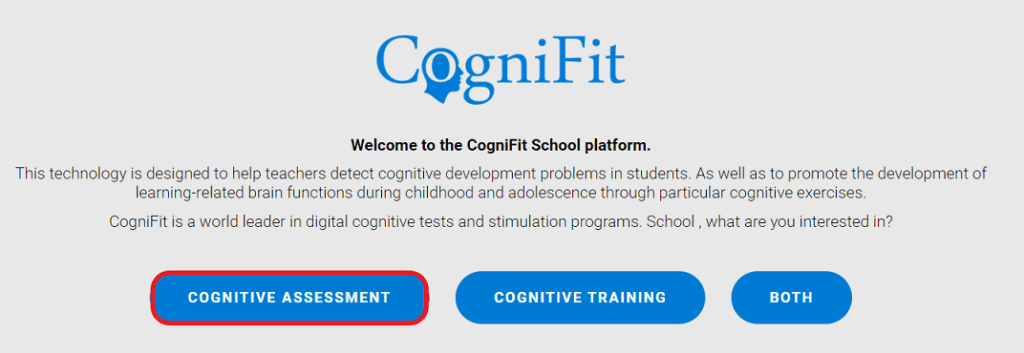
After creating a new school account, the user will see a welcome page. You can purchase assessment licenses by clicking on the “Cognitive assessment” button. The assessment license is valid for any type of assessment on the platform.
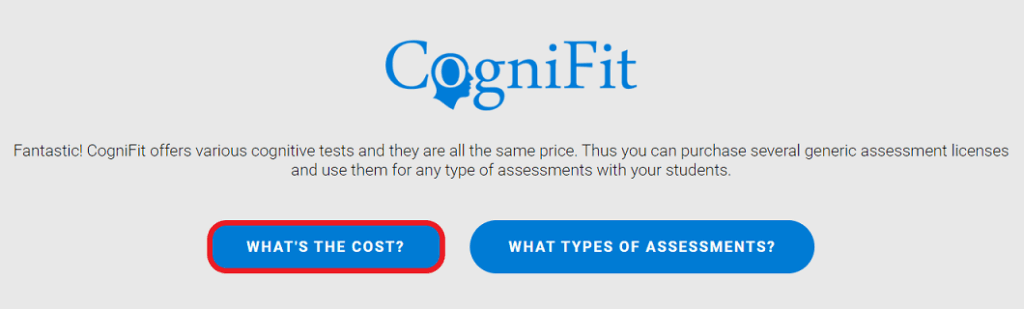
Next click on the “What´s the cost?” option.
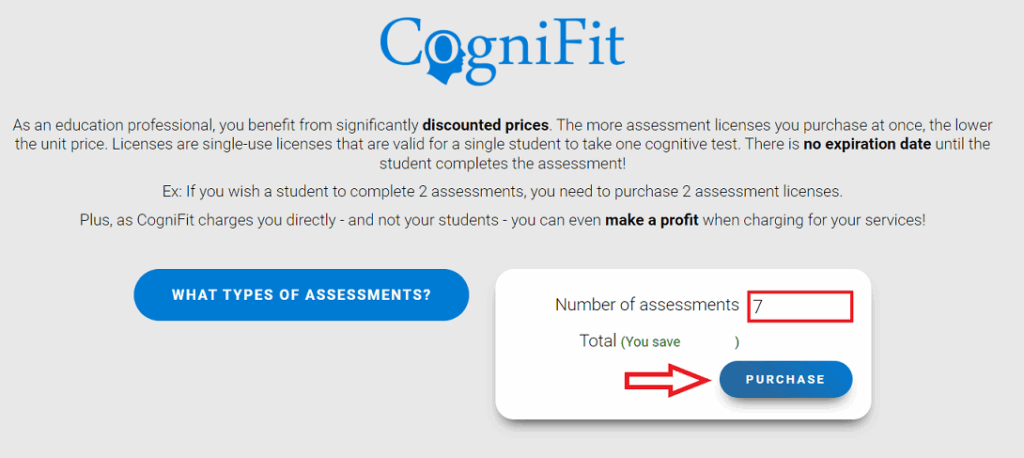
On the page that opens, enter the corresponding number of licenses and click on the “Purchase” button.
Go to section 1.5 of this article to finalize payment.
1.2 Via the home page
You can also purchase assessment licenses at any time from your account home page. To do so, click on the desired test in the “Products” tab.
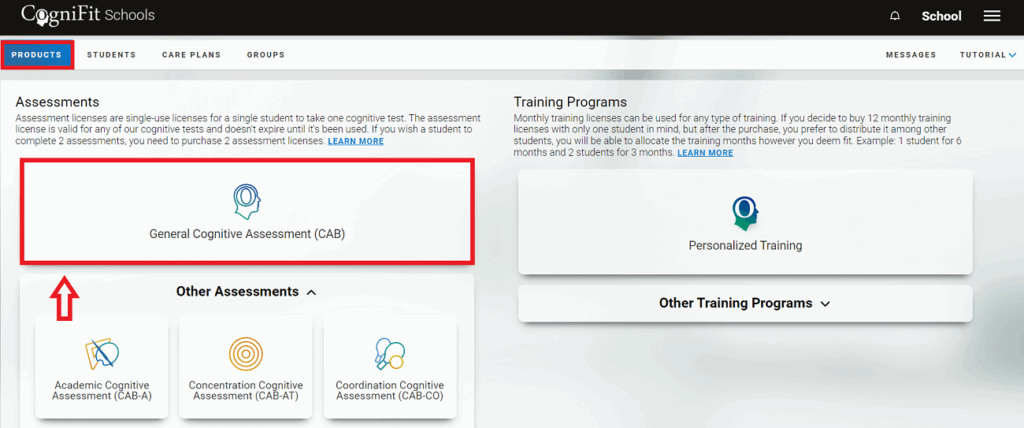
Note: Basic cognitive tasks in the assessment section, available for free. You do not need a license to assign them to a student.
On the assessment page that opens, select the number of licenses required (using the “+” and/or “-” buttons) and then click the “Start now” button.
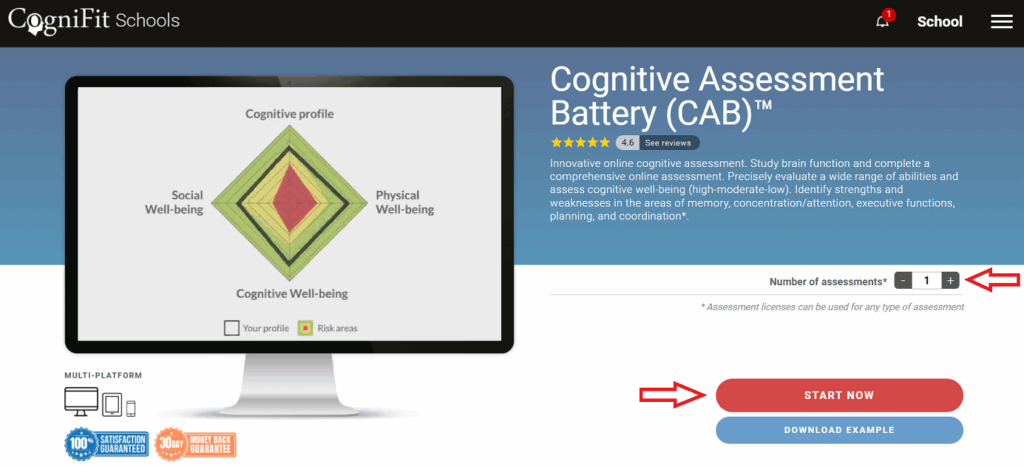
Go to section 1.5 of this article to finalize payment.
1.3 Via Account Settings
1.3.1 Click on the menu button in the upper right corner of the screen and select the “Account Settings” option.
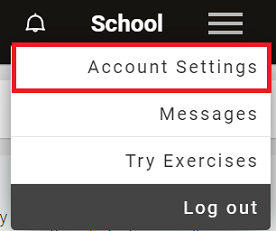
Then select the “Assessments” tab. On the page that opens, select the required number of licenses and click the “Purchase” button.
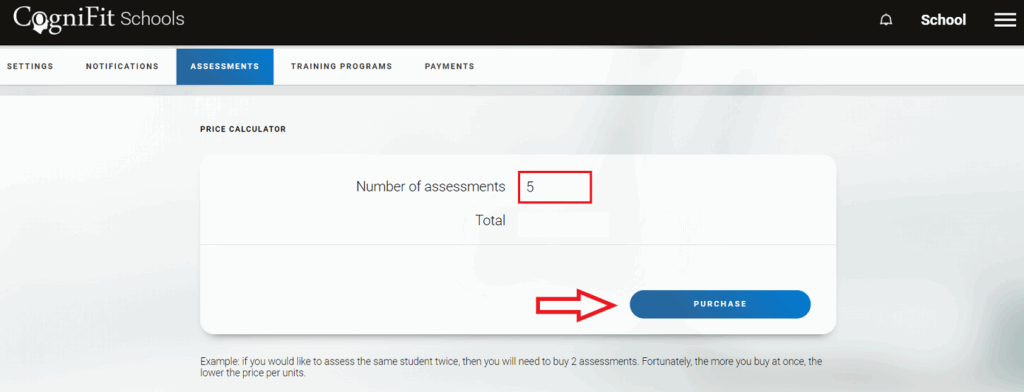
Note: The assessment license is valid for any type of assessment on the platform.
Go to section 1.5 of this article to finalize payment.
1.3.2 The assessments page can also be accessed in your account settings by clicking on the “Learn more” option in the “Products” tab on the main page of your account.
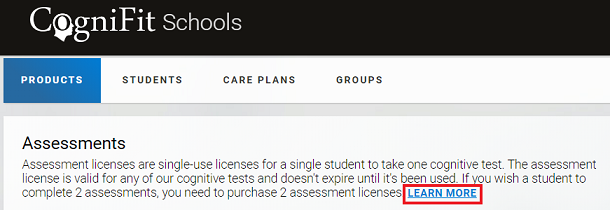
Click the “Purchase” button.
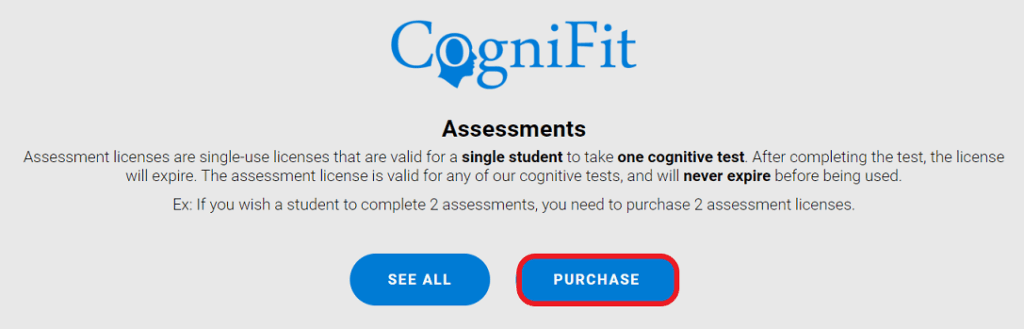
On the page that opens, select the number of licenses required and click the “Purchase” button.
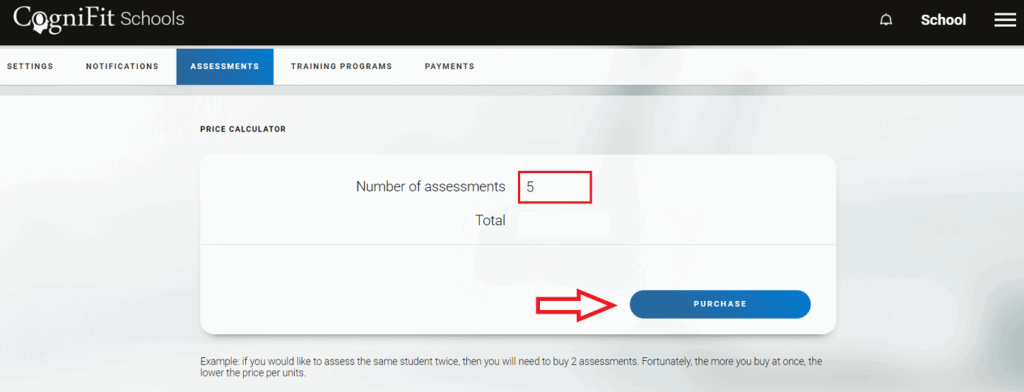
Note: The assessment license is valid for any type of assessment on the platform.
Go to section 1.5 of this article to finalize payment.
1.4 Adding students to the platform
You can also purchase assessment licenses when you add students to the platform. If there are no licenses available on the account for schools when assigning an assessment to the student, the platform will open a payment page and offer to purchase the necessary license (see article “How to invite students?, sections 4, 5).
Click on “Assessments“.
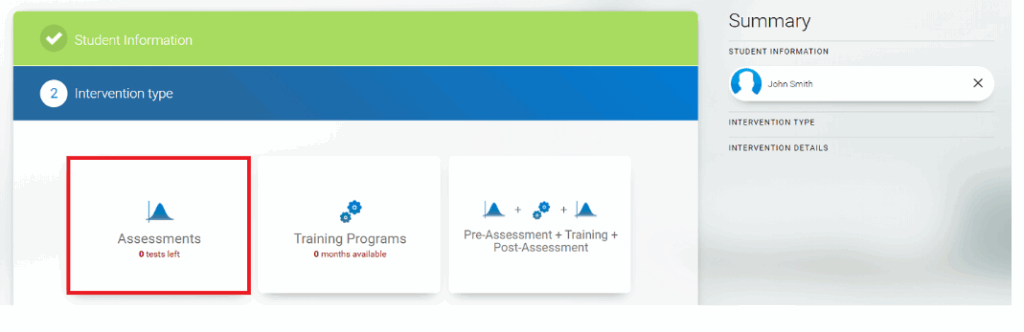
Click on the test and then on the “Get More” option.
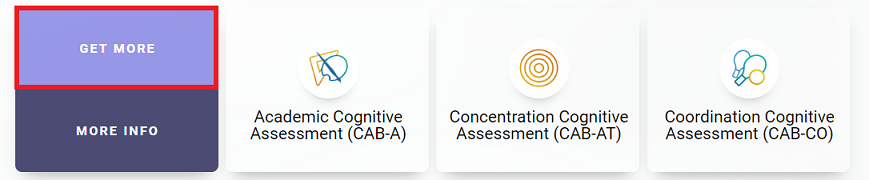
Go to section 1.5 of this article to finalize payment.
1.5 Buy assessment licenses
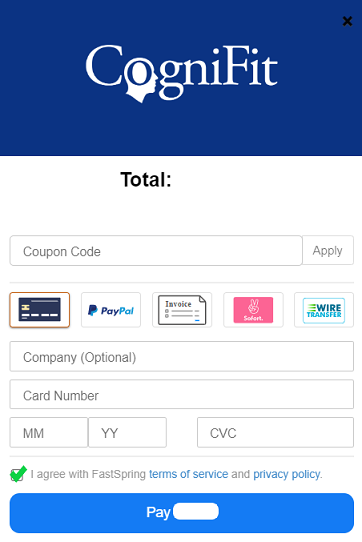
Any of the above options will take the user to the payment page. Choose the available payment method and enter the required payment details. Accept FastSpring payment platform’s terms of use and privacy policy. To finalize the purchase, click the blue payment button. The total price is automatically updated in your currency, when supported.
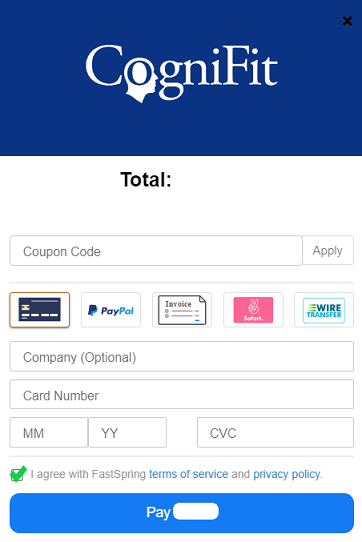
The licenses you have purchased will be immediately available in your account. To add students to the platform and assign licenses to them, follow the instructions in this article. If you have a valid promotional code, find out how to use it here.
2. How to purchase monthly training licenses
Note: As a teaching professional, you have the advantage of reduced license prices. The more monthly training licenses you purchase at a time, the lower the unit price. Learn more about how monthly training licenses work.
Attention: As a teaching professional you are free to use as many months of training as you wish, regardless of the number of students added. For example, when you buy 5 months of training for 10 students, you buy a total of 50 months of training. You are then free to use them according to your actual needs. For example, 2 students for 5 months, 3 students for 10 months and 5 students for 2 months.
2.1 On the welcome page
After creating a new account for schools, the user will see a welcome page. You can purchase training licenses by clicking on the “Cognitive Training” button.
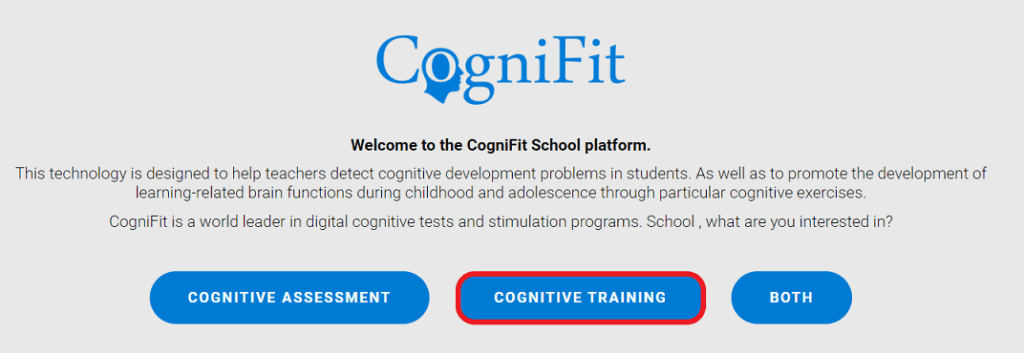
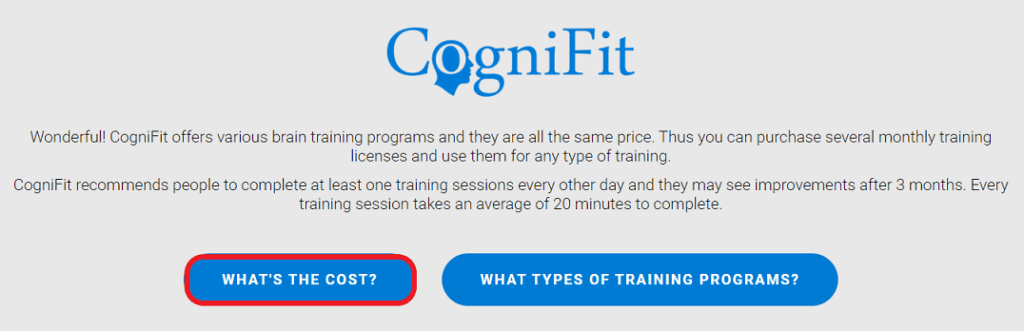
Next click on the “What´s the cost?” option.
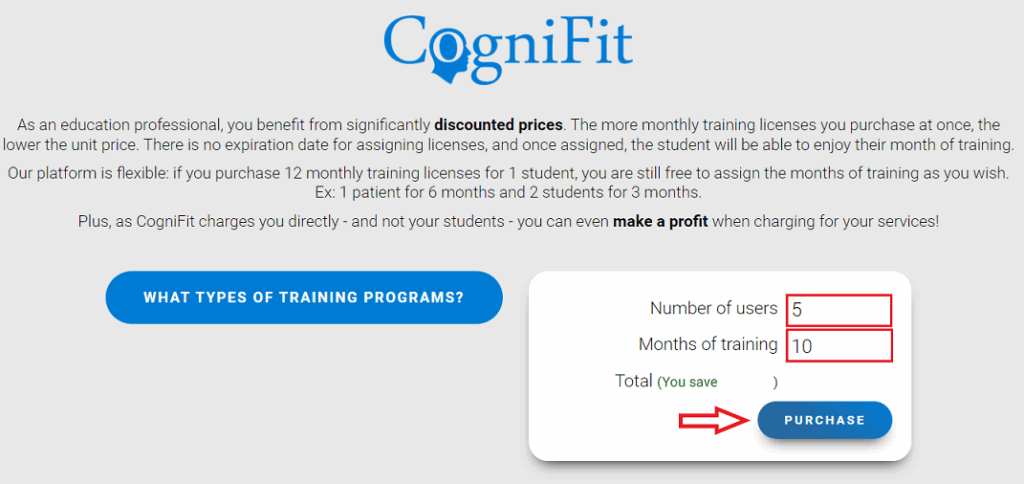
Enter the number of students, the number of months of their training and click on the “Purchase” button.
Go to section 2.5 of this article to finalize payment.
2.2 Via the home page
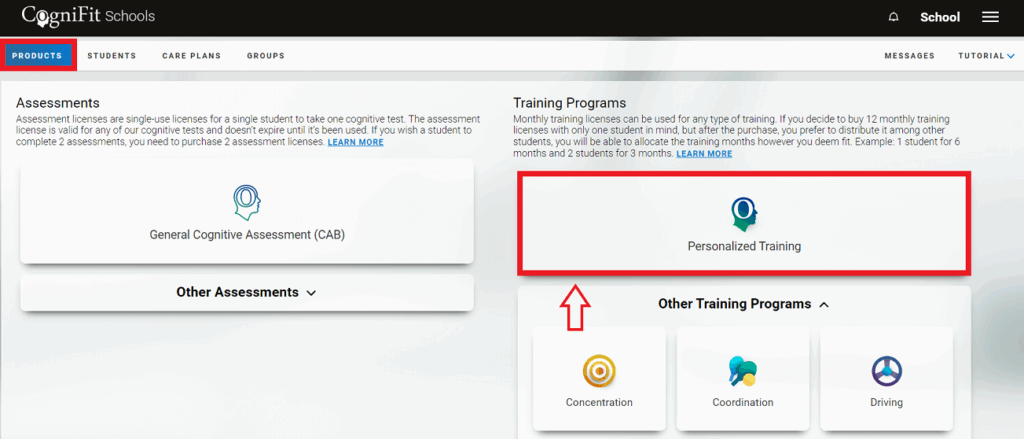
You can also purchase training licenses at any time from your account home page. To do so, click on the desired training in the “Products” tab.
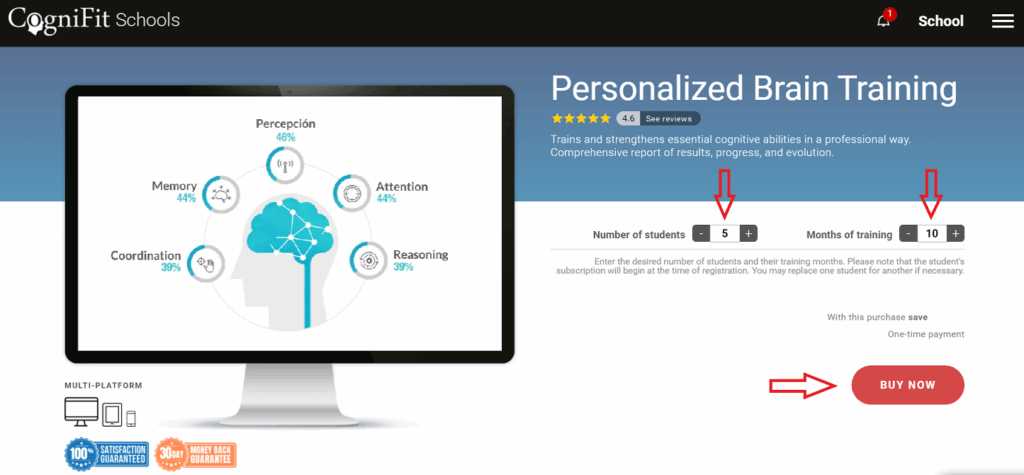
On the training page that opens enter the number of students, the number of months of their training and click the “Buy Now” button.
Go to section 2.5 of this article to finalize payment.
2.3 Via Account Settings
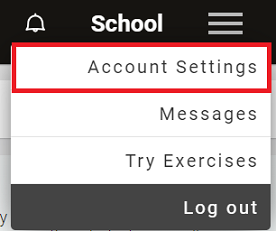
2.3.1 Click on the menu button in the upper right corner of the screen and select the “Account Settings” option.
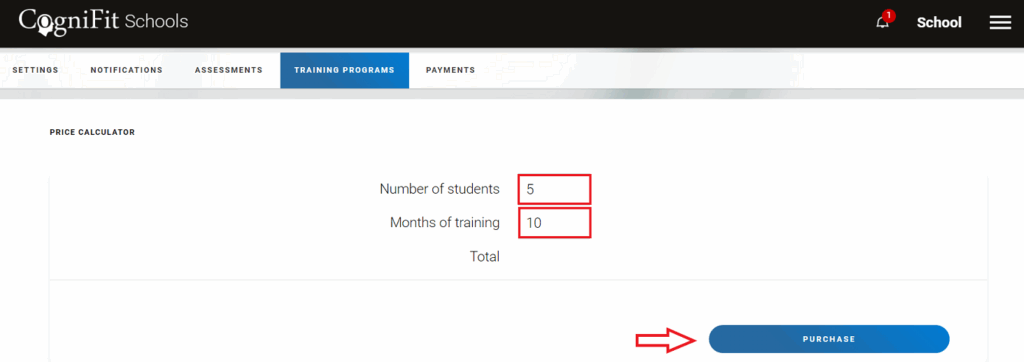
Next, select the “Training Programs” tab. On the page that opens, enter the number of students, the number of months of their training and click the “Purchase” button.
Go to section 2.5 of this article to finalize payment.
2.3.2 The training page can also be accessed in your account settings by clicking on the “Learn more” option in the “Products” tab on the main page of your account.

Click the “Purchase” button.
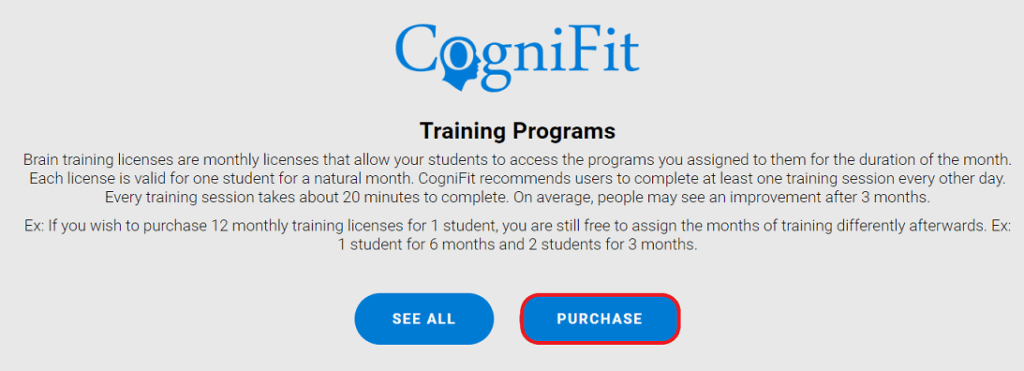
On the page that opens, enter the number of students, the number of months of their training and click on the “Purchase” button.
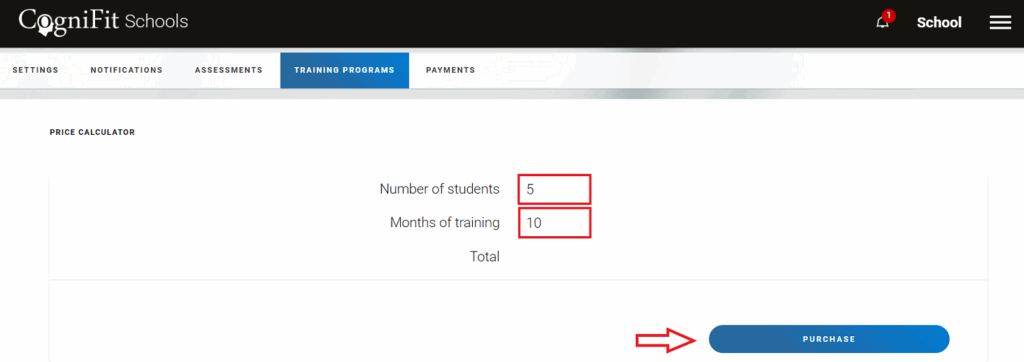
Go to section 2.5 of this article to finalize payment.
2.4 Adding students to the platform
You can also purchase training licenses when you add students to the platform. If there are no licenses available on the account for schools when assigning a training to the student, the platform will open a payment page and offer to purchase the necessary license (see article “How to invite students?, sections 4, 5).
Click on “Training Programs“.
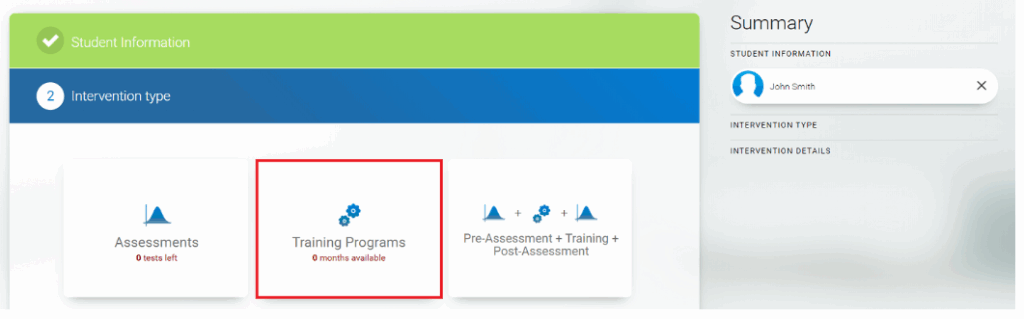
Enter the number of students, the number of months of their training and click on the “Purchase” button.
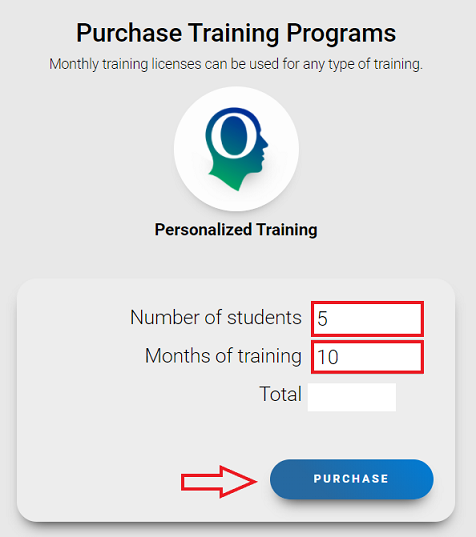
Go to section 2.5 of this article to finalize payment.
2.5 Buy training licenses
Any of the above options will take the user to the payment page. Choose the available payment method and enter the required payment details. Accept FastSpring payment platform’s terms of use and privacy policy. To finalize the purchase, click the blue payment button. The total price is automatically updated in your currency, when supported.
The licenses you have purchased will be immediately available in your account. To add students to the platform and assign licenses to them, follow the instructions in this article. If you have a valid promotional code, find out how to use it here.
If you have any questions, you can contact our support team by sending an email to support@cognifit.com