 by
by When a family member is registered for the first time, a profile is automatically created in the family platform. This means that the account manager has the option to assign or reassign licenses according to their needs.
If you need to purchase evaluation licenses or training subscriptions for your family members, follow the instructions in this article.
If you have removed a family member from your account with an active subscription or an assigned evaluation license, or if you want to reassign the program to another family member already added to your account, follow the steps in this article.
1. Assign an evaluation license
Access your account on the family platform. On the main page, find the family member you want to add an evaluation license to.
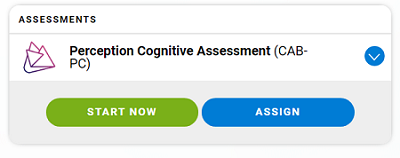
1.1 If your family member uses the same account as the person responsible for the family account, they can start the assessment directly by clicking the Start Now button.

1.2 If your family member uses their own account linked to the family platform, or a mobile device, click the Assign button to assign the assessment.

1.3 The evaluation license is valid for any type of evaluation. If you want to assign the family member another type of evaluation, click on the drop-down arrow that appears in the evaluations section.

Now choose the type of evaluation you want to assign to your family member.

The chosen evaluation will appear in the family member’s profile. Follow steps 1.1 or 1.2 of this article.
2. Assign a training program
In the event that the person responsible for the family account wants to modify the type of training for their family member, they can follow these steps.
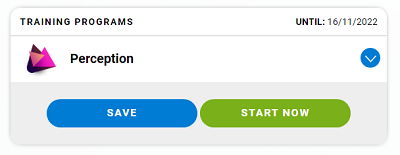
2.1 From the dashboard section, find the family member for whom you want to change the type of training and then click on the drop-down arrow that appears in the training section as it appears in the following image.

2.2 Now choose the type of training you want to assign to your family member.

2.3 The chosen training will appear in your family member’s profile. If your family member uses the same account as the person responsible for the family account, they can start the training directly by clicking the Start Now button. If your family member uses their own account linked to the family platform, or uses a mobile device, click the Save button to assign the new subscription.
If you have any questions, please contact us at support@cognifit.com.