 by
by Please note, if your subscription is activated in the app you need to cancel the subscription in your mobile device:
If the subscription is purchased via your Apple ID please follow the instructions of Apple Support.
If the subscription is purchased via the Google Play Store please follow the instructions of Google Support.
In case you have a CogniFit Family account, please follow the instructions on how to cancel the renewal of a family member’s subscription.
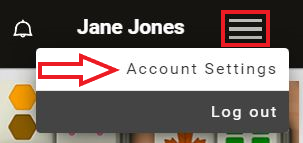
1. To get started, log into your account and click on the Menu icon in the top right corner and select from the drop-down menu Account Settings
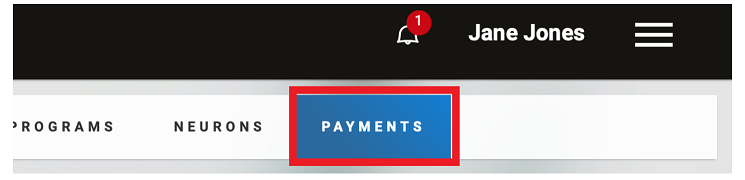
2. When you are in the Account Settings click on the Payments tab
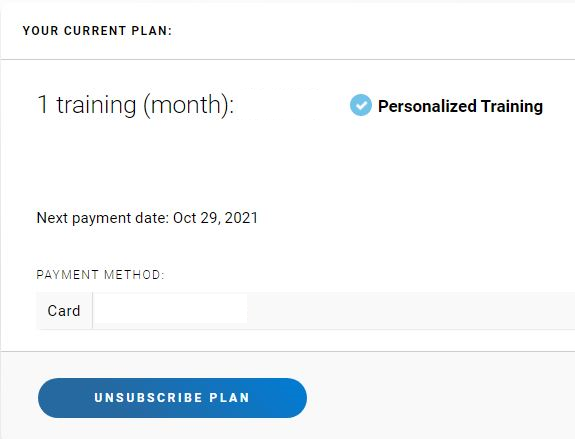
3. On the payments page, click on Unsubscribe plan
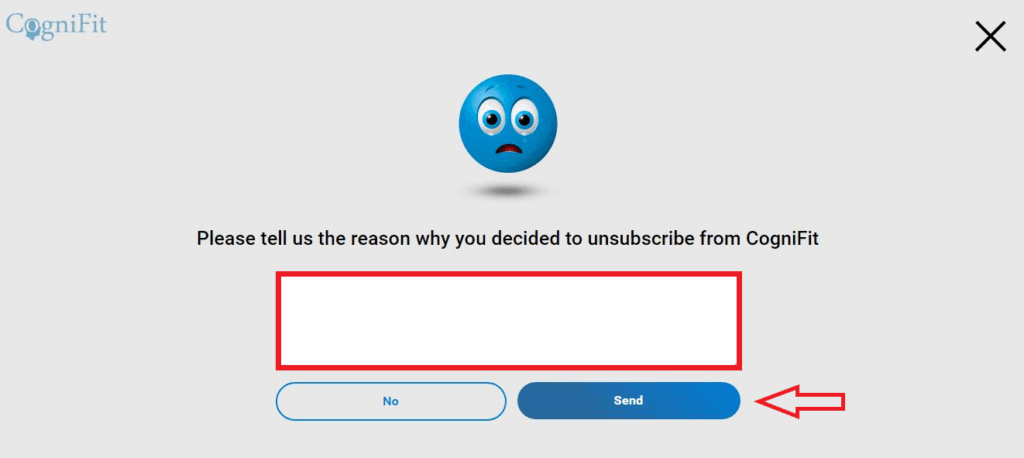
4. In the next page please tell us why you are leaving CogniFit and click on Send. You can continue accessing your training until the expiry date of the subscription.
As stated in the Terms and Conditions, you may cancel your monthly or yearly subscription at any time by following the above instructions. Cancellation will take effect at the start of the following month/year.
For example: If your monthly subscription renews every 3rd of the month and you canceled your subscription on the 17th of the month, the cancellation will take effect on the 3rd of the following month. Likewise, for a yearly subscription: If your yearly subscription renews every May 5th of a given year and you cancel your subscription on the 6th of September of the year before renewal, the cancellation will take effect at the end of your subscription (May 5th of the following year).
When canceling a subscription, the Services and Products that have already been paid for will be available until the next renewal date of that subscription.
For further questions please contact CogniFit customer support at support@cognifit.com