 by
by After creating your CogniFit account for free, you will have limited access to certain basic features offered by the platform (you can take thean initial cognitive assessment, try the games…). To access CogniFit’s brain training programs, you will need to purchase a subscription.
Attention: The subscription also gives users access to all cognitive assessments. The same assessment can be performed again after 30 days (with an active subscription).
Note: This article is for individual users. If you are interested in the Platform for families or the Platforms for medical professionals, schools or researchers, please see the articles:
- How to purchase assessments and trainings on the Family Platform?
- How do health professionals purchase cognitive interventions?
- How do teachers purchase cognitive interventions?
- How to purchase licenses on the researcher platform?
To purchase a subscription for an individual user, follow the steps below. If you are using a mobile device, please see section 2 of this article.
1. If you are using a computer
Once you have logged in to your account, you can access the subscription payment page in several ways.
1.1 Subscription through the Dashboard or Home Page
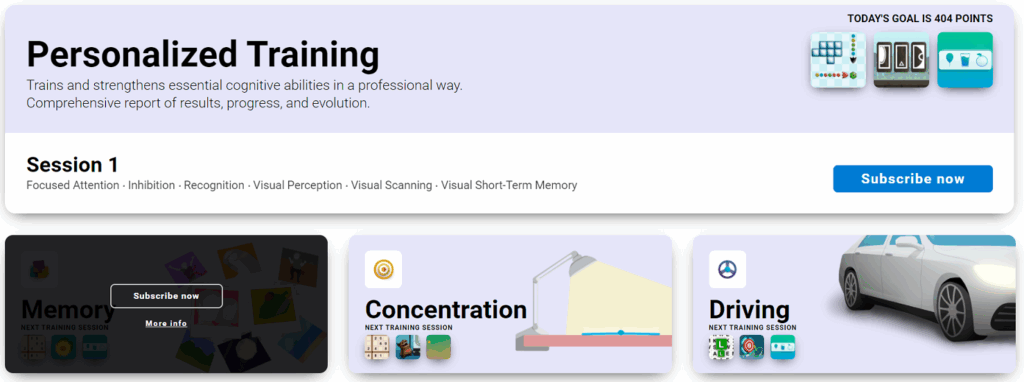
You can pay for your CogniFit subscription directly from the home page. To do so, click on the “Subscribe now” button at the top of the screen.
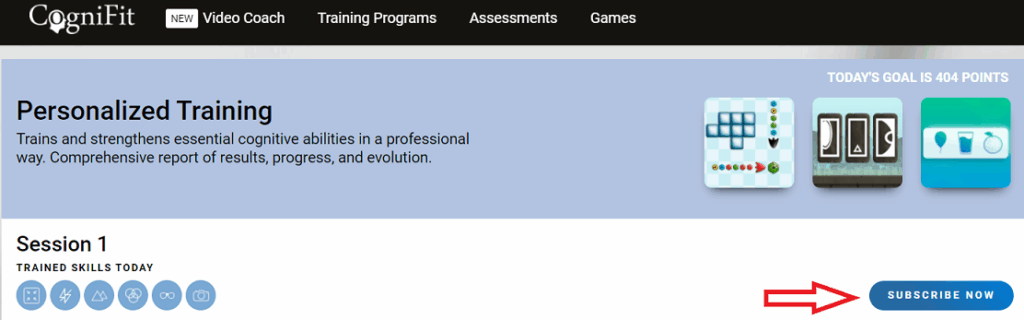
Then skip to section 1.6 of this article.
Note: By default, the platform will offer you the subscription to the Personalized Training. If you want to change the type of training see section 1.6 of this article.
1.2 Subscription to training with a Video Coach
To go to the Video Coach training page, click on the appropriate option at the top of the screen.
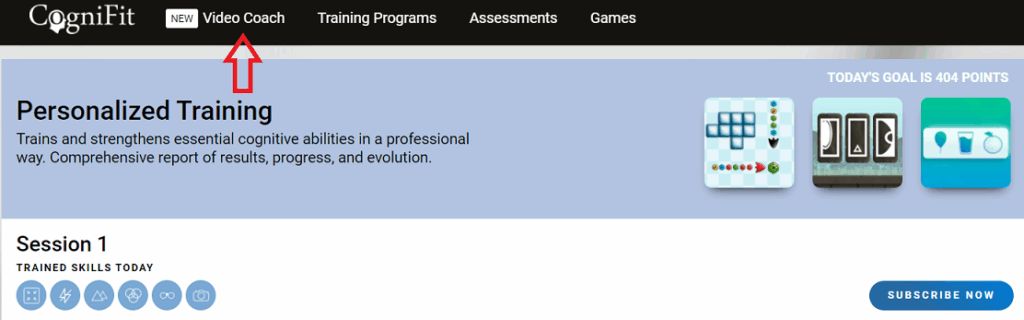
On the page that opens, you can select the cognitive area you want to train (memory, reasoning, concentration ….) and the training level by selecting the options you want.
To access the all training sessions with the Video Coach, click on any video with a lock icon.
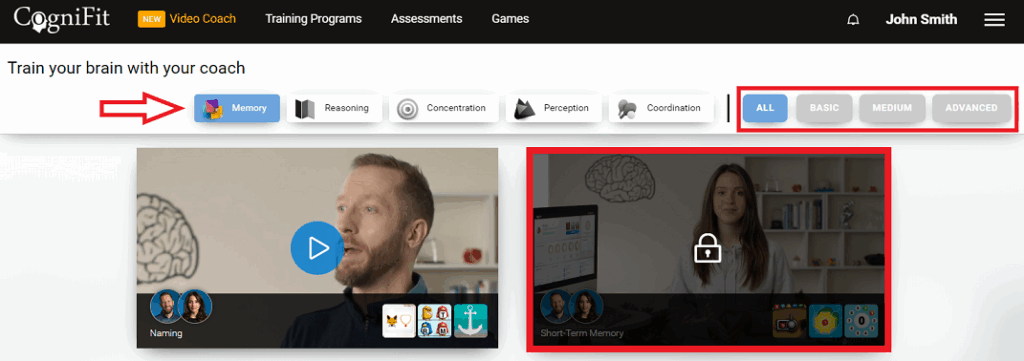
Then skip to section 1.6 of this article.
Note: You will get access to training with a Video Coach by purchasing any subscription at CogniFit. Read more about what CogniFit video coaching in this article.
1.3 Subscription through Trainings Programs
To see a list of all available trainings, go to “Training Programs” by clicking on this option in the top bar of the screen.
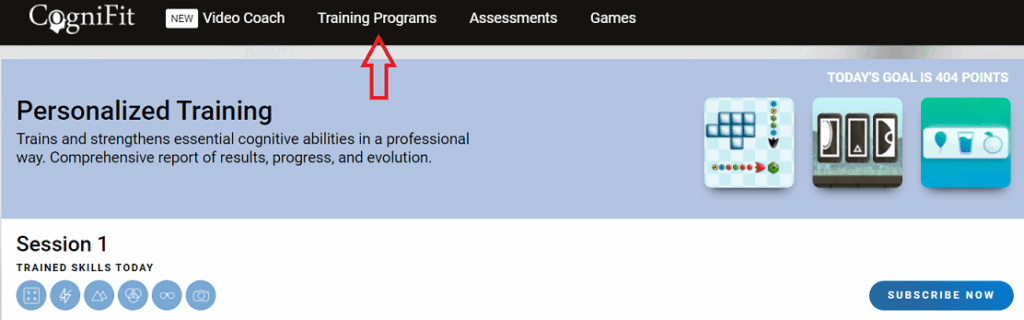
Choose the option that best suits your needs and click “Subscribe now“.
Then skip to section 1.6 of this article.
1.4 Subscription through Games
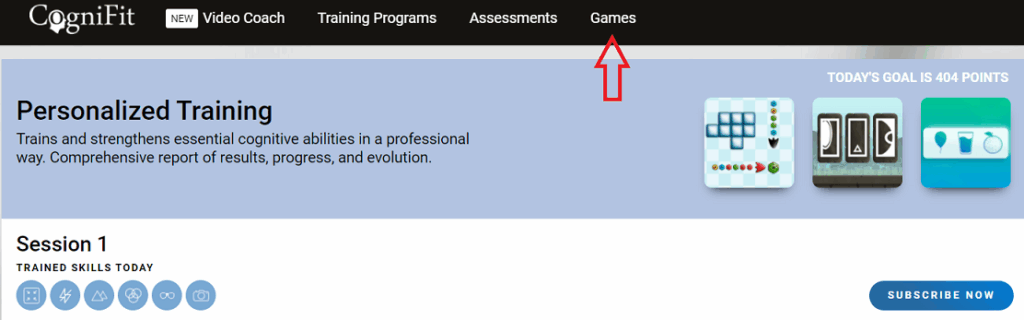
Clicking on the “Games” option at the top of the screen will take you to our Brain Games section.
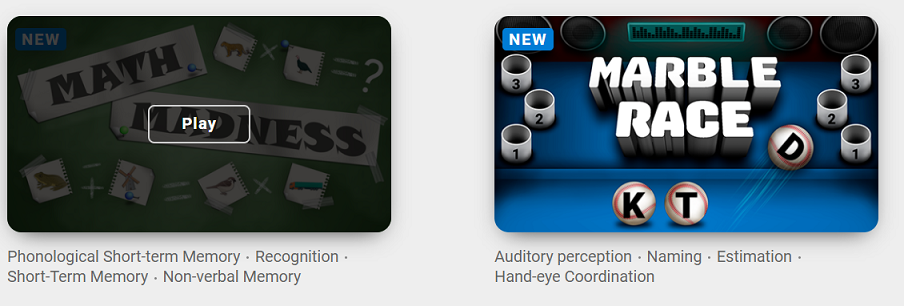
When you sign up for CogniFit, you can try the games for free. You have to purchase a subscription to pass all levels of the game on the site. To try it, choose a game and click on Play.
1.5 Subscription via Account Settings
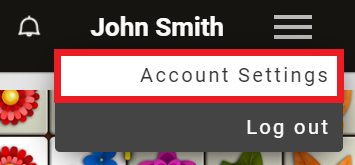
For this option, go to the Account Settings page. To do this, click on the top right menu button and choose the “Account Settings” option.
Next, to sign up for a training, go to the “TRAINING PROGRAMS” tab and then select a subscription plan, following the instructions in section 1.6 of this article.

1.6 Paying the subscription
How to make a purchase? All of the above options will take you to the subscription selection and payment page.
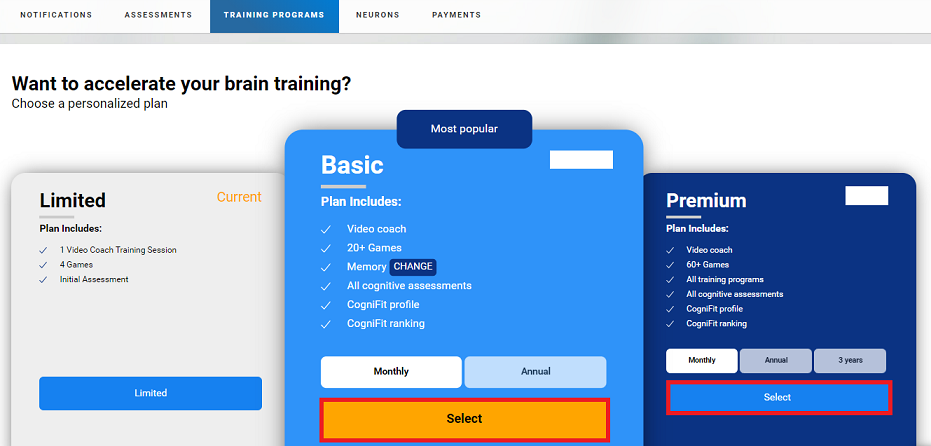
1.6.1 Choose a subscription plan that interests you. You can choose a Basic or Premium plan, as well as a monthly, annual* or 3-year subscription (for Premium), by clicking on the corresponding option.
*The annual or 3-year subscription fee will be charged as a single payment.
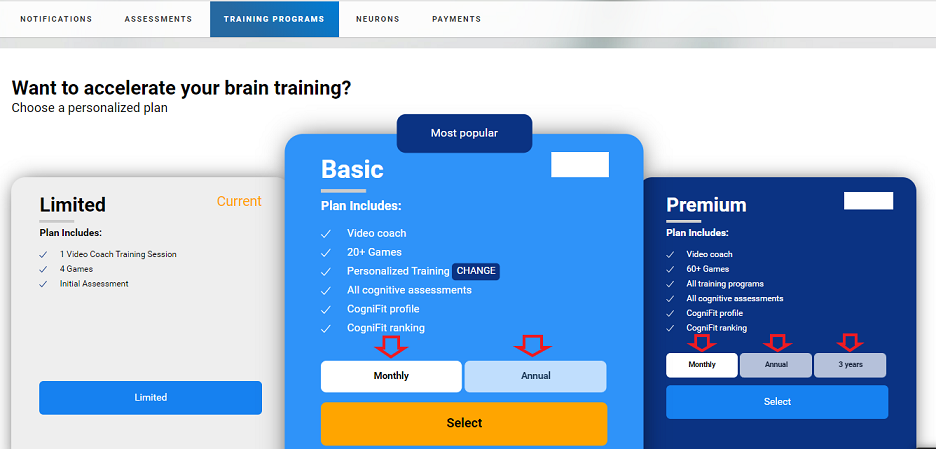
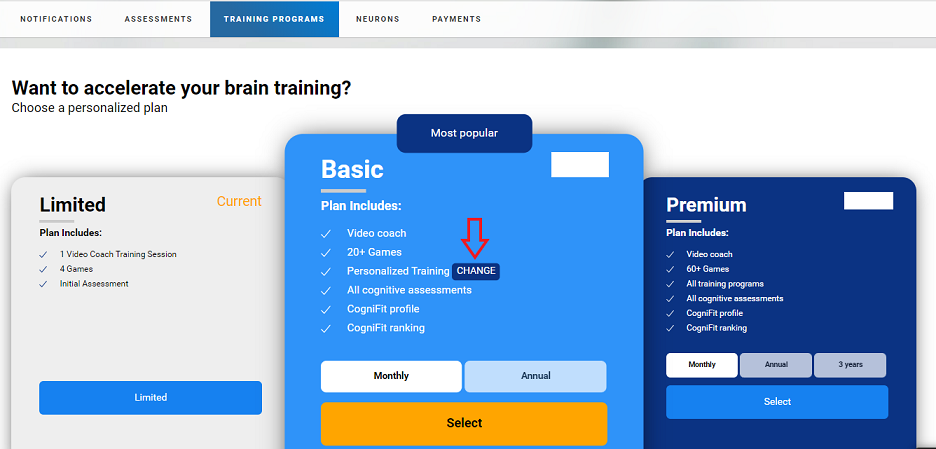
1.6.2 Purchasing a Premium plan gives you access to all types of training. However, if you choose our Basic plan, before paying, you can change the type of training program you wish to purchase. To choose another training click on the “Change” button in the center of the screen.
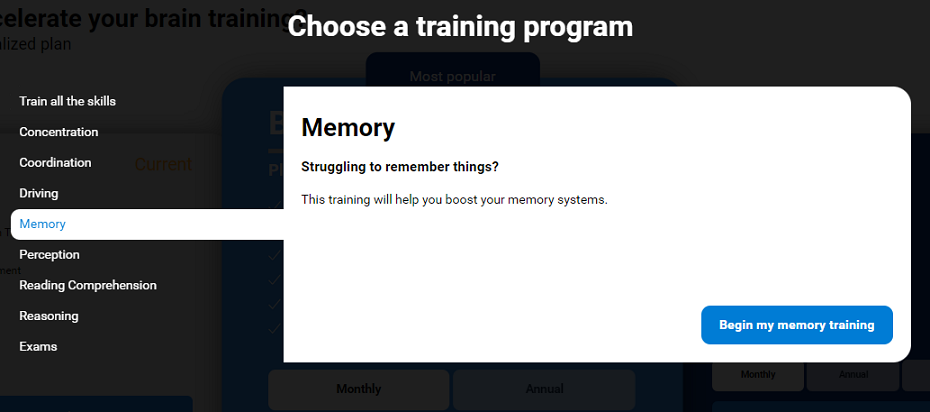
On the page that will open next, choose another training by clicking on its name (in our example, Memory Training) and click on the blue button “Begin my memory training“.
The chosen training will appear on the subscription selection page.
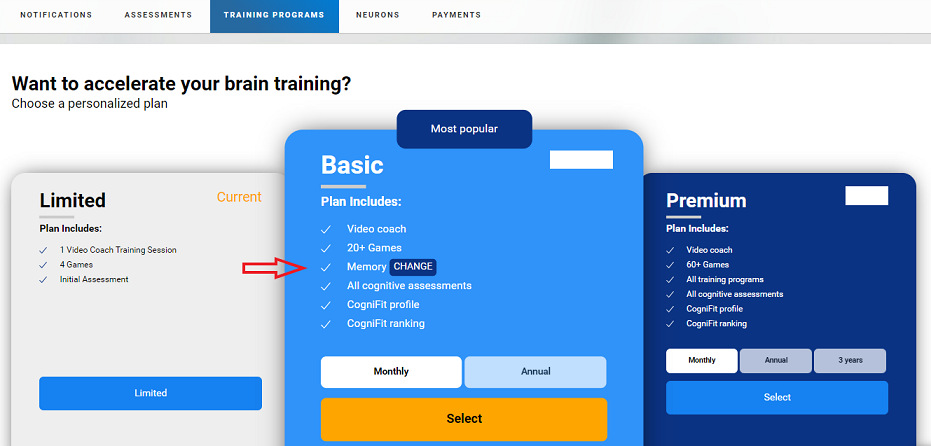
1.6.3 To complete the purchase review your chosen subscription plan and click on the “Select” button.
1.6.4 The payment page will open. To finalize your purchase, select the available payment method**, enter the requested payment details, accept the terms of service and privacy policy of the payment platform and click on the blue payment button.
**If you choose to pay by bank card, please note that the cardholder’s name must be completed in Latin capital letters, exactly as it appears on your card.
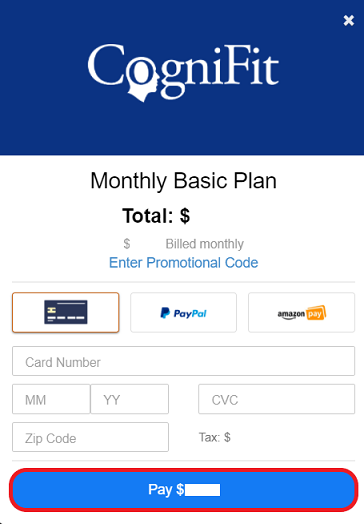
Upon payment, you will have immediate access to the subscription you have purchased.
Note: CogniFit periodically runs discount promotions for its users. If you have a valid promotional code, please follow the instructions in this article to use it.
2. If you use a mobile device
Once you are logged in to your CogniFit App account, you can access the subscription payment page in several ways. You can choose the option you prefer.
Any type of subscription in the application (monthly or yearly) gives you access to all the trainings in the app during the paid period. This option is only available for the mobile app. The subscription also gives users access to all cognitive assessments and meditations. The same assessment can be performed again after 30 days (with an active subscription). More information in section 2.3 of this article.
2.1 Subscription through the “Train” tab
Press the “Train” menu option at the bottom of the screen. Scroll up or down with your finger and select a training you are interested in.
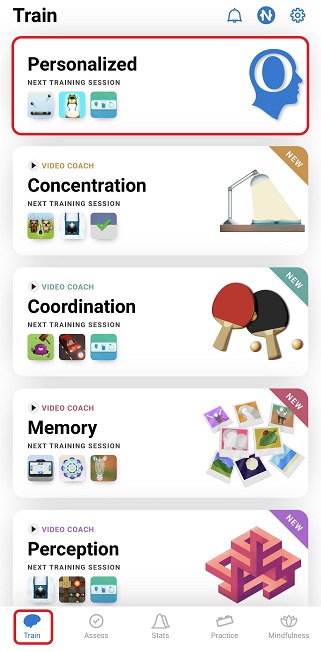
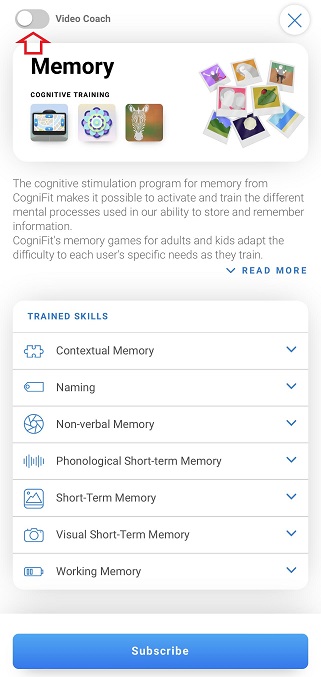
Next, a page will open with information about the selected training. By scrolling down the page you can read more about this training and what cognitive skills it can help train. To complete your purchase click the “Subscribe” button.
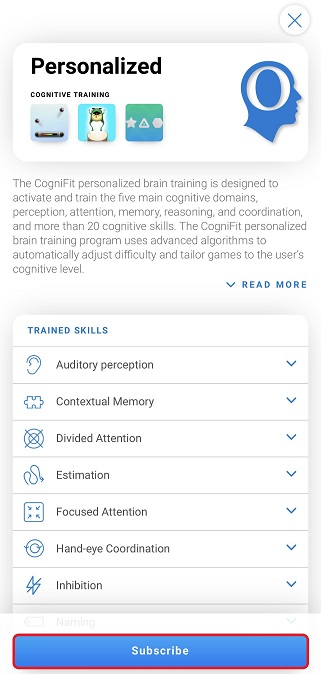
To finalize the payment, please consult section 2.3 of this article.
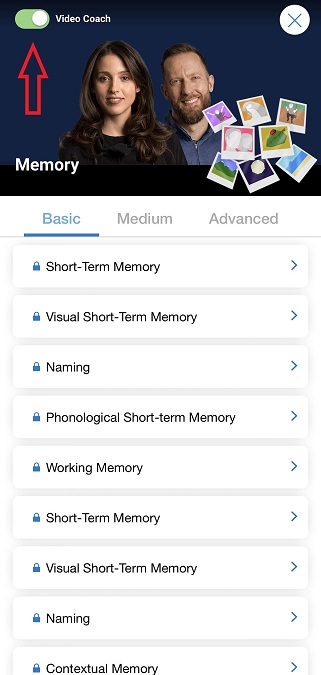
Note: A Video Coaching option is available for some trainings. If you want to train with Video Coaching, click on the training you are interested in.
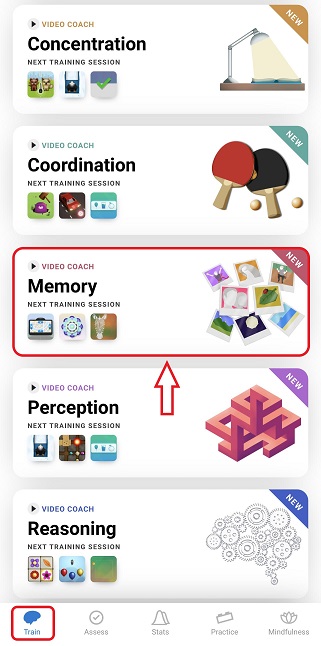
To finalize the payment, please consult section 2.3 of this article. You will get access to training with a Video Coach by purchasing any subscription in the CogniFit app (monthly or annual).
Attention: You will get access to training with a Video Coach by purchasing any subscription in the CogniFit app (monthly or annual). On the training with Video Coaching page you can select the training level (Basic, Medium, Advanced), as well as select a training for a specific cognitive ability (in our example, from the memory area: Short-Term Memory, Working Memory, etc.
If you want to switch to normal training mode (without Video Coaching), turn this option off with your finger using the slider at the top of the screen.
This will open the training page without the video coach. You can always activate this option again.
2.2. Subscription via the “Stats” tab
You can also purchase the subscription from the “Stats” tab. Click the “Start now” button.
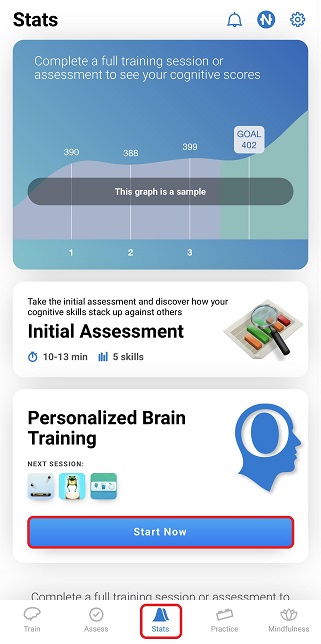
To finalize the payment, please consult section 2.3 of this article.
2.3 Purchase a subscription
Any of the three options above will take you to the subscription payment page. There are two types of subscription available for the mobile app: a monthly or an annual subscription. Select the option you are interested in at the center of the screen, click on it and follow the App Store or Google Play instructions to finalize your purchase.
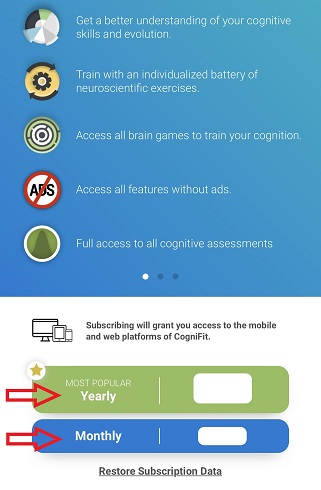
You can consult the subscription plans for mobile application users in this article.
Attention: Any type of subscription in the application (monthly or yearly) gives you access to all the trainings and meditations available in the application during the paid period. This option is only available for the mobile app. The subscription also gives users access to all cognitive assessments. The same assessment can be performed again after 30 days (with an active subscription).
Note: CogniFit periodically runs discount promotions for its users. If there is a promotion running in the app, you will see information about it when you checkout. The discount will be applied automatically at the time of payment and there is no need to enter a promotional code.
If you have any questions you can contact our support team by sending an email to support@cognifit.com